
The PO Edit Page allows buyers to access the complete details of a PO. Buyers can edit a PO, email the PO to a supplier or the original requester, add funds, and other updates.
Below is a quick intro to the most common activities taking place on the PO Edit page and how the new UI compares to the previous UI.
Adding a New Part or Service Line
Duplicate, Convert from a Part to a Service, & Deleting a Line
General Overview
View the general updates featured on the new UI for the PO Edit Page:
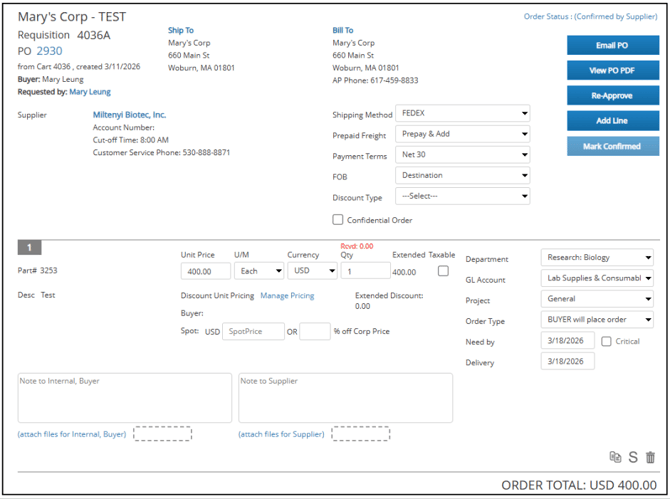
Updated to:
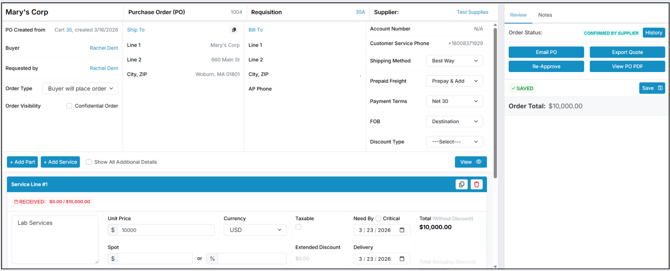
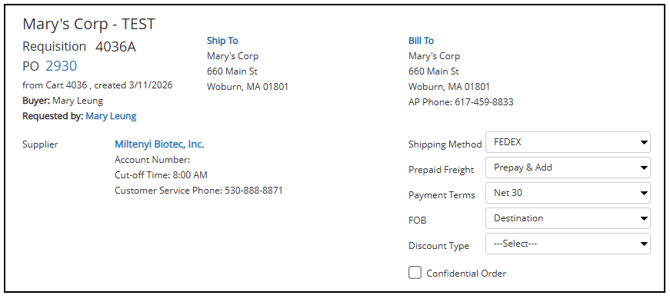
The top of the screen on the former UI includes Company Name, Requisition Number, PO Number, Buyer, Requested by (original requester), Supplier, Ship To, Bill To, Shipping Method, Prepaid Freight, Payment Terms, FOB (Shipping Terms), Discount Type, and Confidential Order:
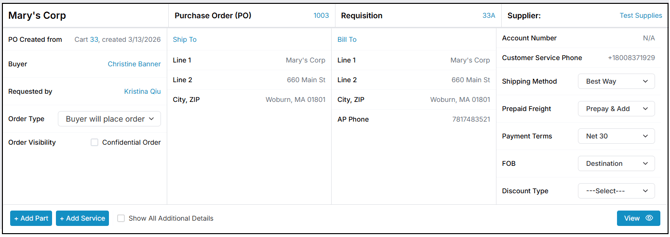
On the new UI, these fields have updated to a new look:
Part and Service lines
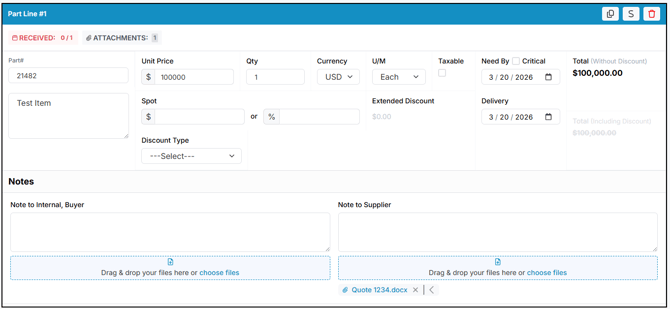
Adding a Part and Service lines have moved. Previous UI:
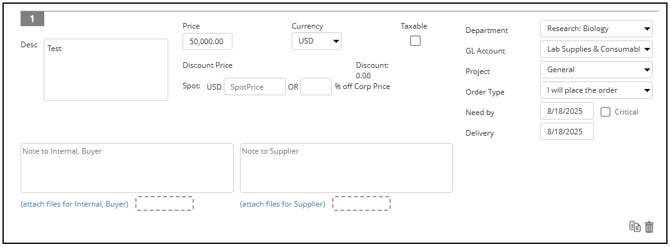
Part and Service lines in the New UI:
Accounting Segments for Each Line have been updated from the Previous UI:
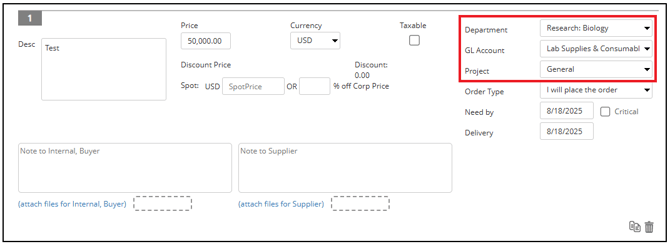
To a new location:
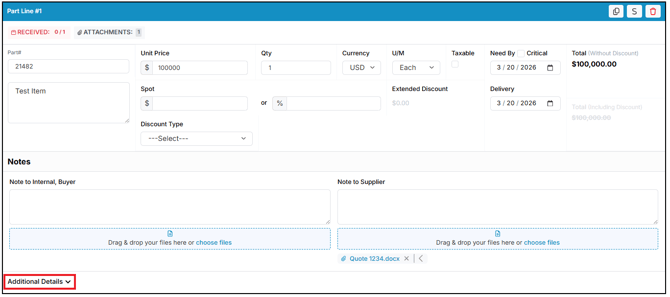
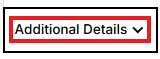
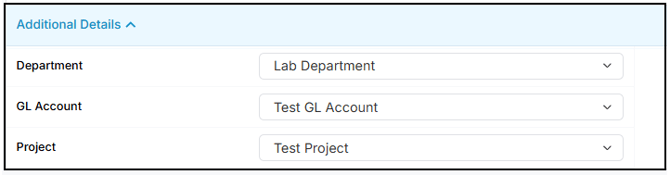
Department, GL Account, Project and other accounting fields are under Additional Details on each line. Select Show All Additional Details (next to + Add Part) to open them on every line at once.
Action Buttons including Email PO, View PO PDF, Re-Approve, Add Line, and Mark Confirmed have migrated from the Previous UI:
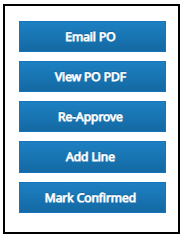
To new areas in the New UI:
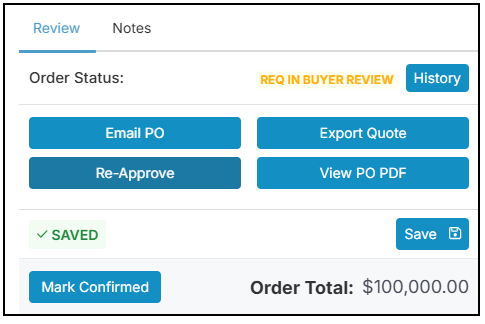
To make changes, select Edit at the top right of the lines. + Add Part, + Add Service and the line buttons (duplicate, S and delete) only show in Edit mode.
Select View to go back to the read-only view
Saving Your Changes
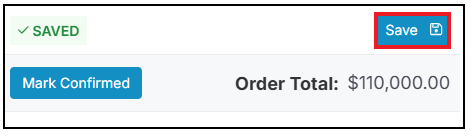
Your changes save automatically a moment after you stop typing. The side panel shows Saved when everything is saved, or Unsaved Changes while it's still saving. Select Save to save right away.
Adding a New Part or Service Line
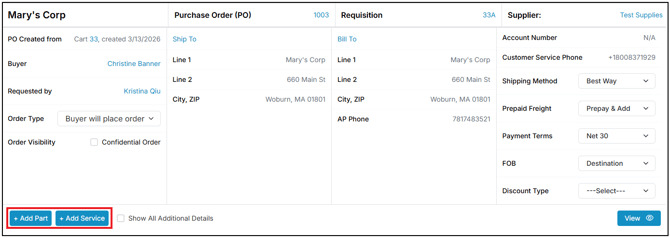
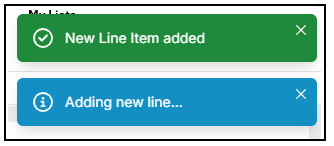
To add a new Part or Service line, locate + Add Part or +Add Service found on the left of the screen underneath the Company Name. Please note that the ability to add a new part or service line is not available for orders created using a punchout:

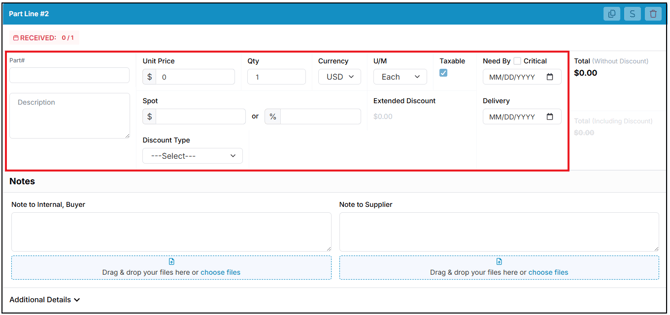
Fields for a Part Line:
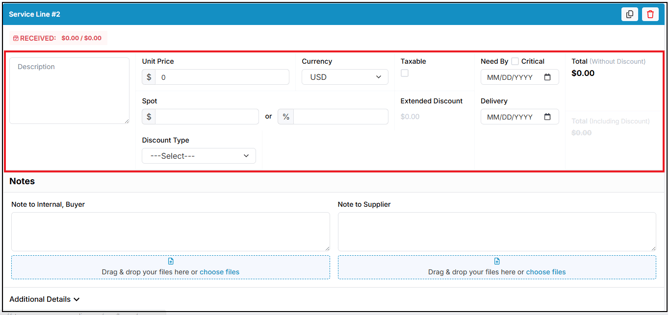
Fields for a Service line:
Depending on internal company thresholds and policy, re-approval may be required after adding a new part or service line.
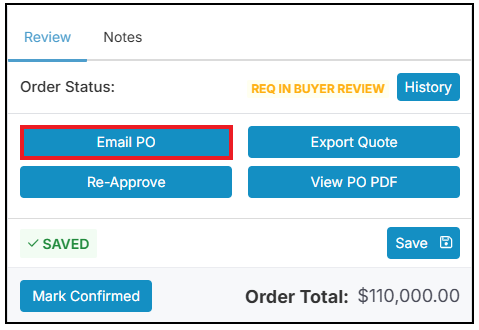
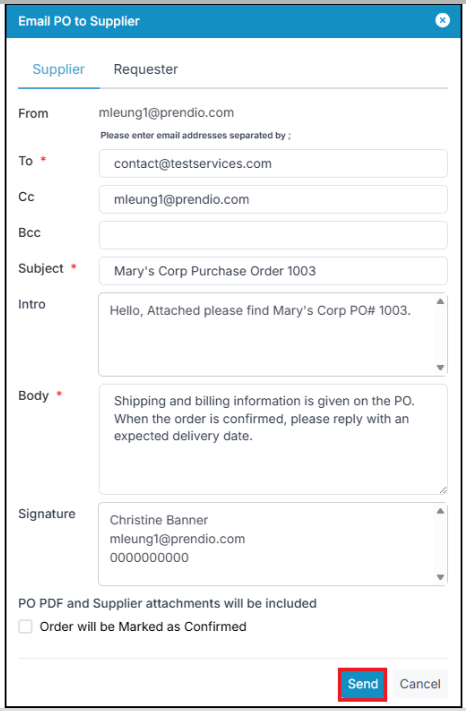
Email PO
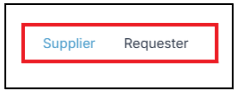
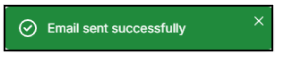
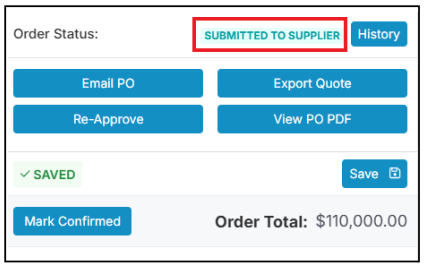
Send a PDF copy of a PO to the supplier or to the original Requester of the PO:
Re-Approval & Override
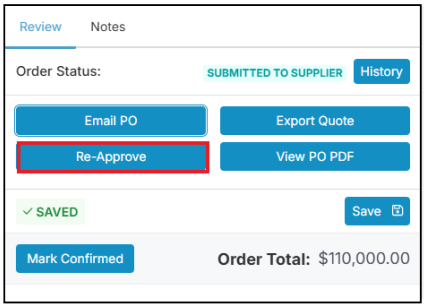
Orders requiring re-approval or an override can be initiated by selecting Re-Approve:
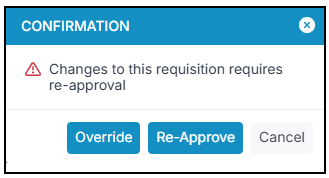
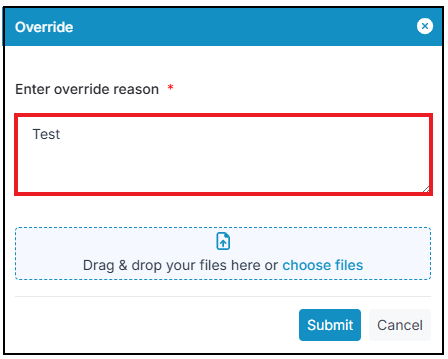
Select Override:
Or select Re-approval:
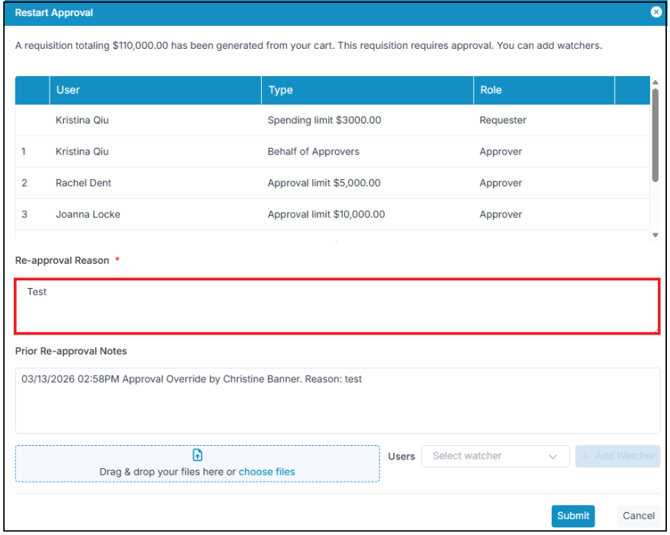


- If changes require re-approval, a red Changes need re-approval label appears above the PO lines. When you select Email PO, the re-approval options open first.
- Important: If you select Cancel in the re-approval window and then confirm with Yes, all changes to the PO are discarded.
- Depending on your company’s settings, the Override option may not be available.
Notes
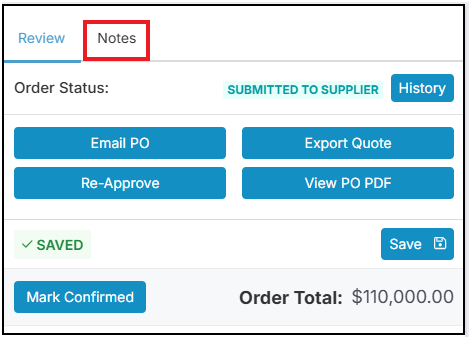
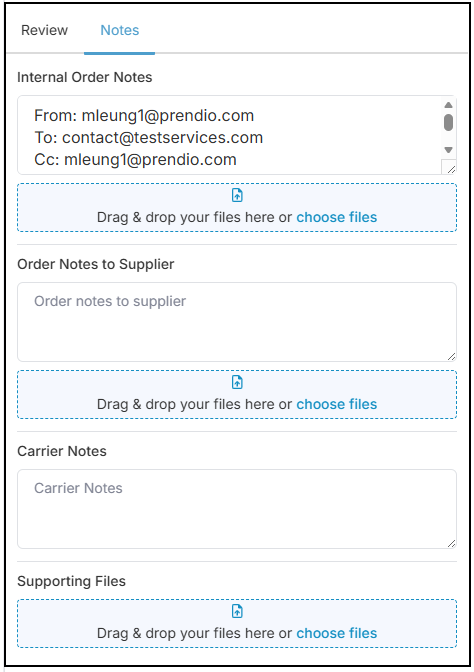
Add notes to keep track of PO updates and for future reference on actions that have taken place:
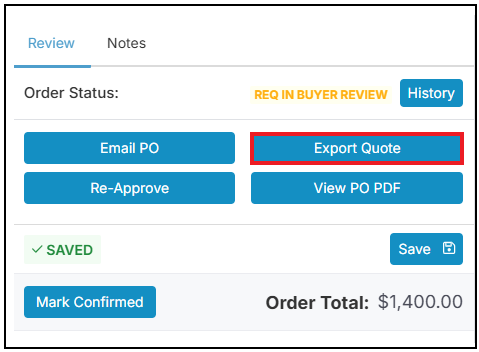
Export Quote
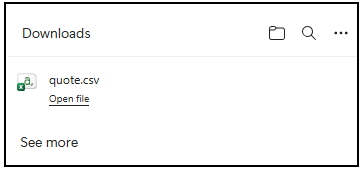
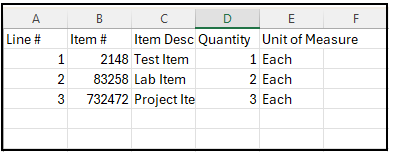
Select Export Quote to download a CSV file (opens in Excel) that lists each line's item number, description, quantity and unit of measure.
Prices are not included. Send the quote to a supplier sales rep to ask about discounts:
Processing a Punchout Order
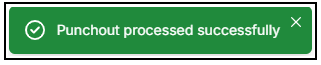
Full punchout orders: select Continue Punchout to send the order to the supplier's punchout site. This button shows while the order is In Buyer Review or Punchout Processing. Process a punchout order by selecting Continue Punchout:
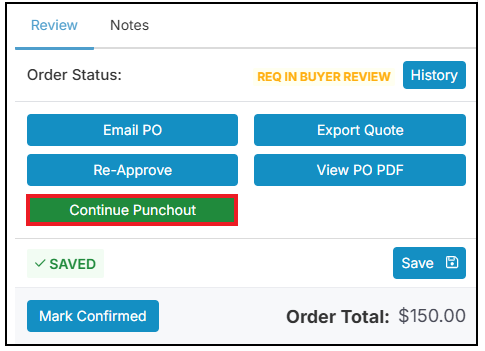
Note: Continue Punchout is greyed out if any line has a Spot price or a file attached under Note to Supplier.
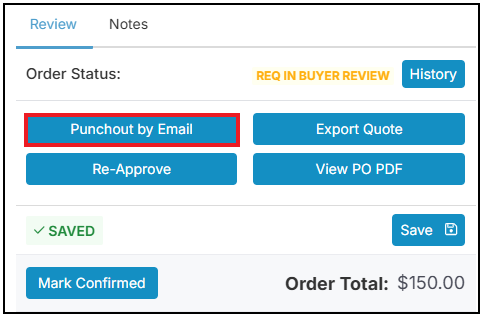
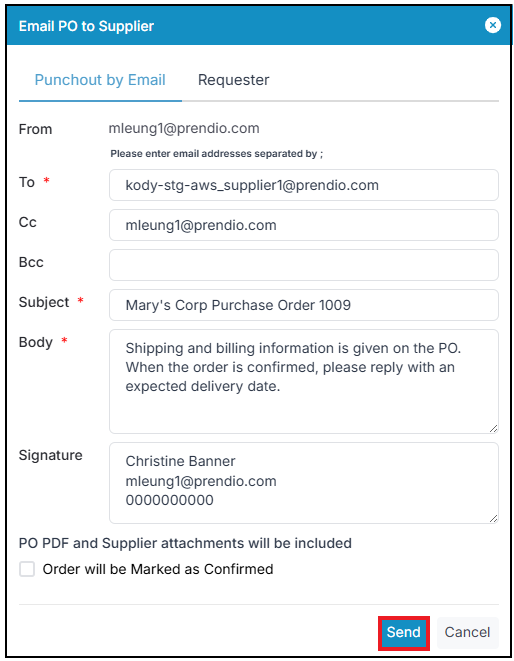
Half punchout orders: Select Punchout by Email. It shows where the Email PO button usually is. Then select Send to email the PO to the supplier:
Email the PO to the supplier by selecting Send:
Duplicate, Convert from a Part to a Service, & Deleting a Line
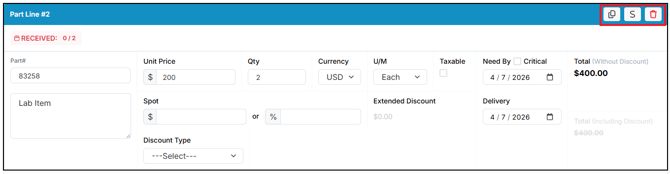
Other capabilities include the ability to duplicate a line, convert a line from a part to service, and deleting a line. These options can be found at the top right of a line in a PO:

Duplicate a Line

Updating a Part Line to a Service Line
Select S at the top right of a part line to make a service copy of that line.
The copy is added at the end of the PO. The original part line stays on the PO. Delete the original part line so only the service version remains.

Note: The S button isn't shown on received lines or on punchout orders.
Delete a Line

Note: Some buttons are hidden on certain lines
-
Delete and S are not shown on lines that have been received.
-
Duplicate and S are not shown on punchout orders.