
Updated on November 1, 2026
The Cycle Time Analytics report is designed to show how long the procure-to-pay process takes and which steps slow it down.
It measures time two ways:
- The requisition view follows each order from cart to fully paid, scoped by Shopping Cart Submitted Date.
- The invoice view follows each invoice from its invoice date to paid.
Together with the Open PO Dashboard, which shows open POs and where they're stuck, and Invoice Analytics, which shows what has been invoiced, where each invoice stands in the AP process and how much remains unpaid, these three dashboards track a purchase from request to payment.
Locating the Cycle Time Analytics Report
Total Invoice Cycle Time by Dimension
Locating the Cycle Time Analytics Report
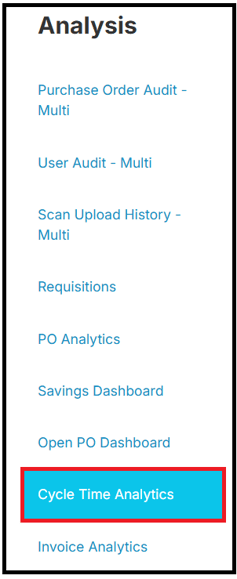
Navigate to the Analysis tab:

Followed by Cycle Time Analytics:
Filters & Search
Filter by Shopping Cart Submitted Date, PO Created Date, Department, GL Account, Supplier, Goods vs. Services, PO Number, Requestor, Payment Terms, PO Type, PO Status, Receipt Count and Voucher Count:
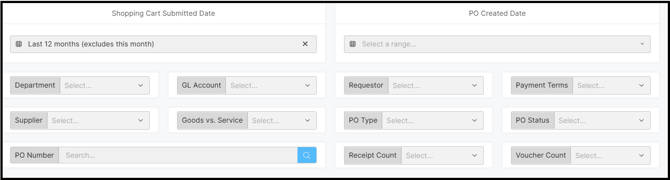
Filters work in two tiers:
- Page filters at the top apply to every section of the report.
- Section filters sitting directly above a table change only that table.
Requistions
The Requisitions section shows the average days in each requisition step and the total cycle time. The cards at the top show Requisitions, Avg Total Approval Time (Days), Avg Total Invoice Time (Days) and Avg Total Cycle Time (Days):

Cycle Time Breakdown
Each step is the gap between two milestones. The steps chain end to end, so they add up to Total Cycle Time: the whole span from Cart Submitted to Fully Paid.
Cart Submitted → Order Placed → Supplier Confirmation → Order Received → Voucher Closed → Push to ERP → Payment → Fully Paid
Use the Mode menu to show the steps Stacked or side by side:
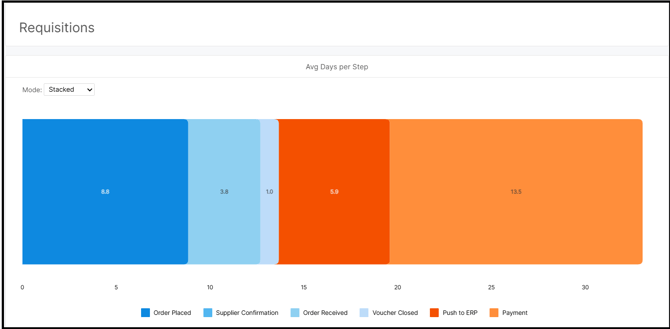
Approval (Cart Submitted to Final Approval) happens inside Order Placed. It isn't shown as a separate bar, because counting it twice would inflate the total. It has its own section below.
Step Definitions
The last column explains which date is used when a PO has several receipts or vouchers.
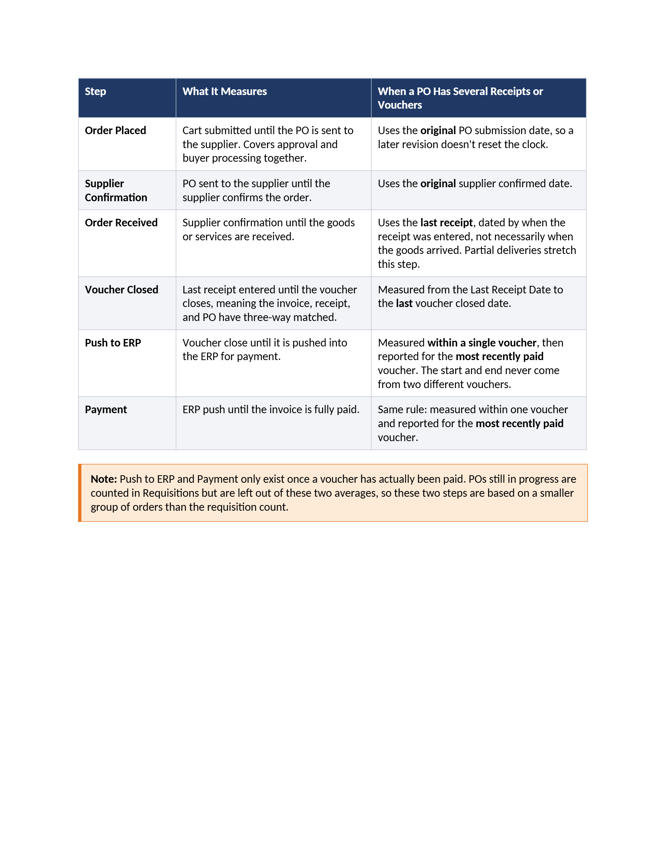 Note: Push to ERP and Payment only exist once a voucher has been paid. POs still in progress are counted in Requisitions but left out of these two averages, so these two steps are based on a smaller group of orders than the requisition count.
Total Cycle Time by Dimension
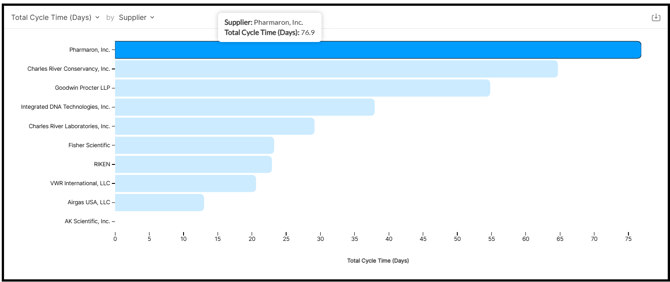
The bar chart shows Total Cycle Time by Supplier by default. Hover over a bar to see its Total Cycle Time (Days). Click the ˅ next to the chart title to switch the dimension, for example to Department.
Approvals
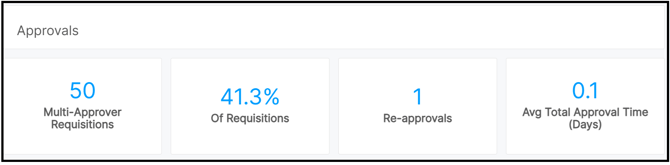
The Approvals section shows how much time approvals take, in which departments, and how often orders go back for re-approval. Approval time is measured from Cart Submitted to Final Approval.
The cards show Multi-Approver Requisitions, the share Of Requisitions that needed more than one approver, Re-approvals, and Avg Total Approval Time (Days):
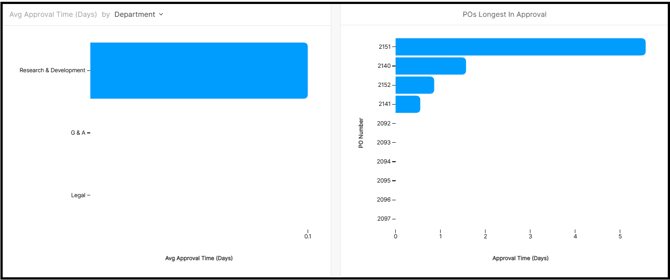
Two charts sit below the cards:
- Avg Approval Time (Days) by Department. Click the ˅ next to the title to switch the dimension.
- POs Longest in Approval, which lists the POs that spent the most days in approval.
Invoice Cycle Time
The invoice view measures each invoice on its own, using its own dates. The cards show Invoices, Invoices per PO, Invoices Paid (%) and Avg Total Invoice Time (Days):
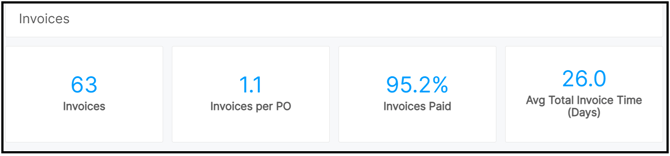
Unpaid invoices count toward Invoices but not toward the average invoice time. Invoices Paid shows how much of the population the timing is based on.
Invoice Step Definitions
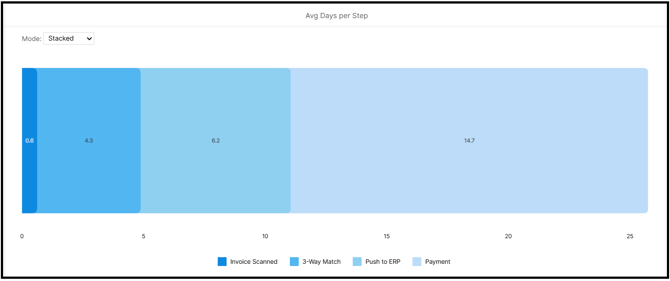
The four steps chain end to end and add up to Total Invoice Cycle Time:
Invoice Date → Invoice Scanned → 3-Way Match → Push to ERP → Payment → Paid
|
Step |
What it measures |
What to keep in mind |
|---|---|---|
|
Invoice Scanned |
Invoice date until the invoice is scanned into Prendio. |
The invoice date is the date on the supplier's invoice, so this step includes the time it takes the invoice to reach your AP team. |
|
3-Way Match |
Invoice scanned until the voucher closes, meaning the invoice, receipt and PO have matched. |
Time spent waiting on a receipt shows up here. |
|
Push to ERP |
Voucher closed until it is pushed to the ERP. |
Same milestones as the requisition view, but every invoice counts, not only the most recently paid one. |
|
Payment |
ERP push until the invoice is paid. |
Compare against Payment Terms to see whether suppliers are paid on |
Total Invoice Cycle Time by Dimension
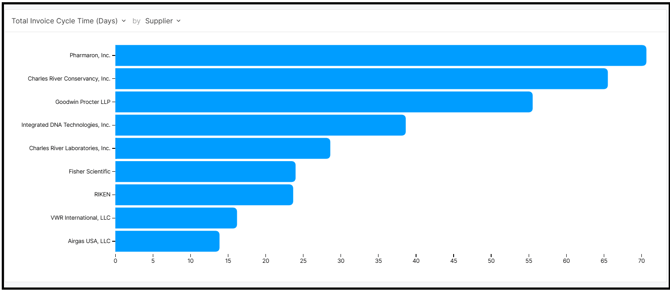
The bar chart shows Total Invoice Cycle Time by Supplier by default. Click the ˅ next to the chart title to break it out by Line Types, PO Type, Department, GL Account, any Segment, Requestor or Payment Terms instead.
Which view to use? The requisition view shows how long an order takes from request to fully paid. The invoice view shows how long AP takes on each invoice. A PO with three invoices is one row in the requisition view and three rows in the invoice view.
Details
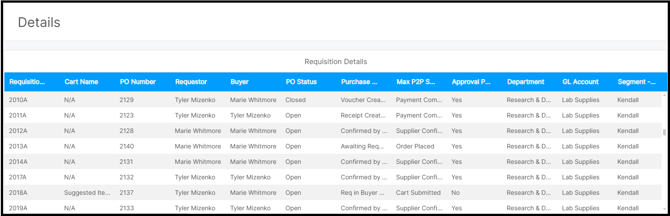
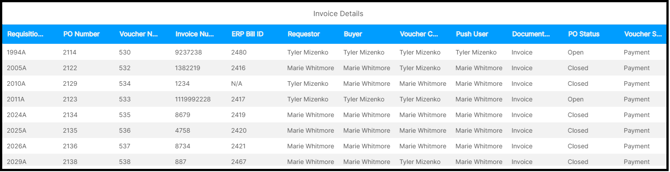
Two tables show the records behind the averages.
- Requisition Details: one row per requisition, with every milestone date and step duration, plus the receipt and voucher counts for the PO.
- Invoice Details: one row per invoice, with its PO, voucher and ERP Bill ID, every date from cart to payment, each invoice step in days, and the PO's receipt and voucher counts.
Downloading a View
Hover over the top right corner of any view to show the download icon: 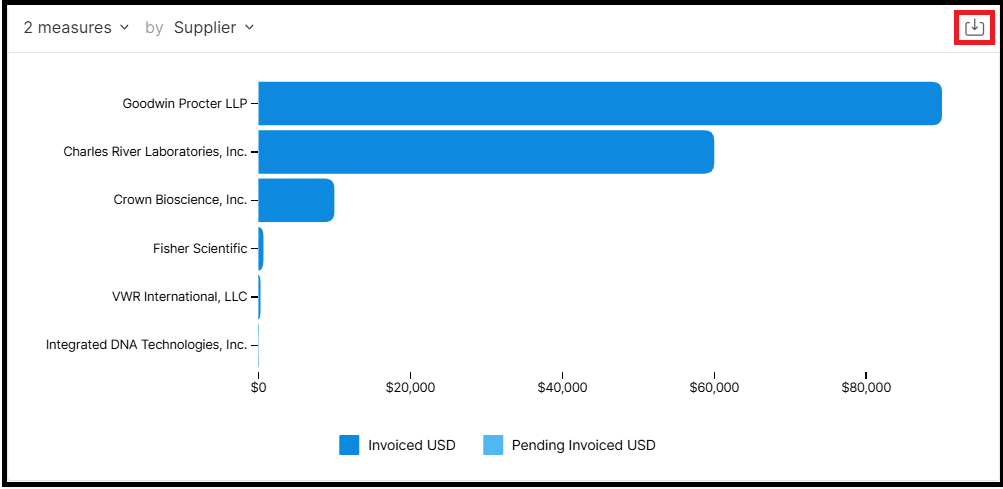
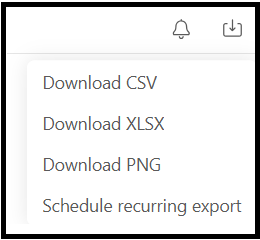
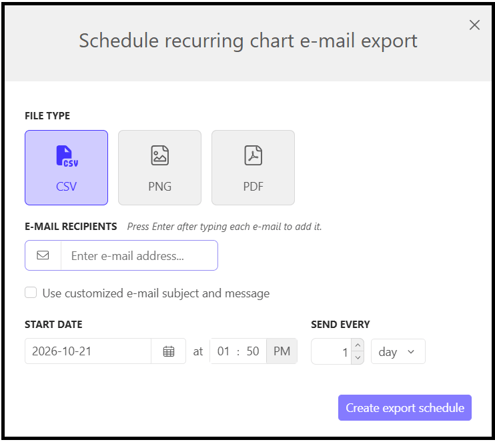
To email a view to one or more people on a schedule, select Schedule recurring export. Choose the file type, recipients, start date and frequency, then select Create export schedule:
Tips for Getting Around
- Jump to the PO: click any row in a details table to open that PO in Prendio.
- Scroll right for more columns: the tables include every milestone date and the amounts behind the KPI cards.
- Exports line up: column names and order match across the Open PO Dashboard, Cycle Time Analytics, Invoice Analytics and PO Analytics, so exports can be combined.
Terms Worth Knowing
|
Term |
Meaning |
|---|---|
|
Max P2P Step / Max Invoice Step |
The furthest milestone a requisition or invoice has reached. Useful for finding where things stall. |
|
Reapproval Count |
How many times an order went back through approval. |
|
Supplier Confirmed Date |
The date the supplier confirmed the order. |
|
Last Receipt Date |
When the most recent receipt on the PO was entered. |
|
Receipt Count / Voucher Count |
How many receipts and vouchers have been entered against the PO. |
|
Invoice Date / Invoice Scan Date |
The date printed on the supplier's invoice / the date it was scanned into Prendio. |
|
Voucher Matched |
A receipt has been matched to a voucher line, so the three-way match is done. |
|
Document Type |
The type of AP document the voucher was created from. |
|
ERP Bill ID |
The bill's ID in your ERP, for matching Prendio records to your accounting system. |
|
Voucher / Push / Payment Status |
Where the voucher stands in Prendio, whether it has been pushed to the ERP, and whether it has been paid. |
|
Last Push Date |
When the most recent voucher on the PO was pushed to the ERP. |
|
Invoice Before PO |
The invoice is dated before the PO was created (an after-the-fact PO). |
|
Requestor / Preparer / Buyer |
Who needed it / who built the cart / who placed the PO. |
|
Receipt Creator / Voucher Creator / Push User |
Who entered the receipt / who created the voucher / who pushed it to the ERP. |