
Updated on August 12, 2026
After a cart is submitted, a requisition number is assigned, and approval may be required before the order can proceed. Approvers can review the requisition and edit requisitions directly or request changes from the original requester.
This feature allows:
- Preserving the original requisition number through all edit and resubmit cycles
- Maintaining a full audit history of all changes, notes and decisions
- Preventing self-approval by retriggering the approval path on resubmit
- Giving both approvers and requestors a structured workflow with clear actions at each stage
To enable the ability to edit a requisition while in approvals, please submit a request using the Support Ticket Request form link: Support Ticket Request Form
Responding to a Requisition Approval and Reviewing Edit Options
Requester Reviews Edits Made by an Approver
Responding to a Requisition Approval and Reviewing Edit Options
After a requester submits a cart, a requisition number will be assigned to the order. Any approvers required to review the order will be prompted via a notification on their Dashboard:
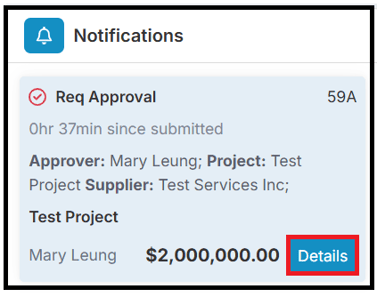
After selecting Details from the Dashboard notification, the approver will be directed to the next screen including a Requisition Approval window. Approvers can exit out of this window to view the order details and select Click for details to populate the window again: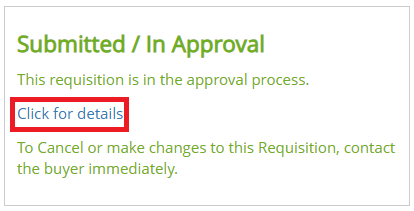
If changes are required for the requisition, the approver can select Edit Order to:
- Adjust the requisition details themselves
- Send a request to the original requester to make adjustments
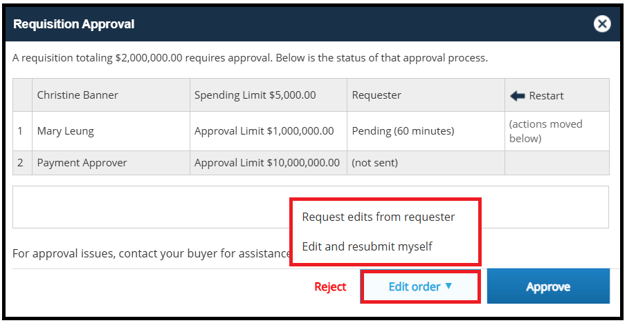
Note: Approvers receive a corresponding email for approval requests; however, the option to edit a requisition is not available in the email:
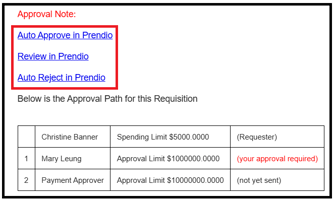
To make edits, please respond to the approval notification card seen in the steps above.
Video Guidance on Reviewing Edit Options for a Requisition in Approval
Request edits from requester
Approver Actions
An approver can opt to request changes to the requisition from the original requester of the order:
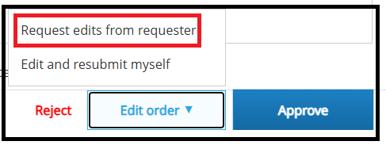
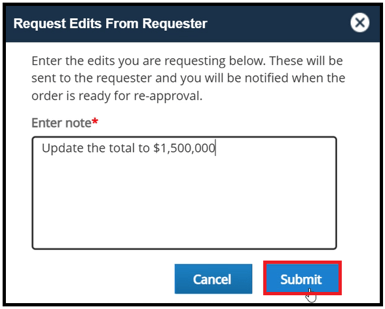
After this option is selected, an approver can add the changes that need to be made by the original requester. Submit when complete:
The Order History window will appear after changes have been submitted reflecting a Changes Requested (Open) status. Exit out of this window: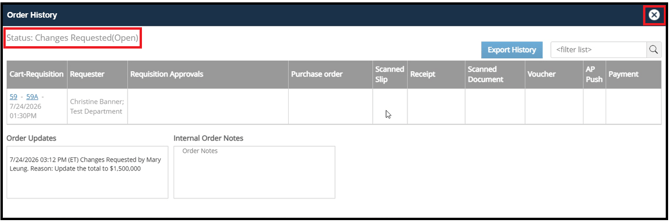
The Changes Requested (Open) status will also be reflected on the Requisition page:
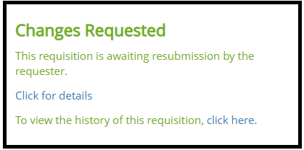
The requisition has been routed to the original requester for review and to make changes. Back on the Dashboard, the requisition will also appear in the My Orders tab:

Video Guidance on an Approver Requesting Edits from the Requester
Requester Actions
The original requester will receive an email notification for re-approval:
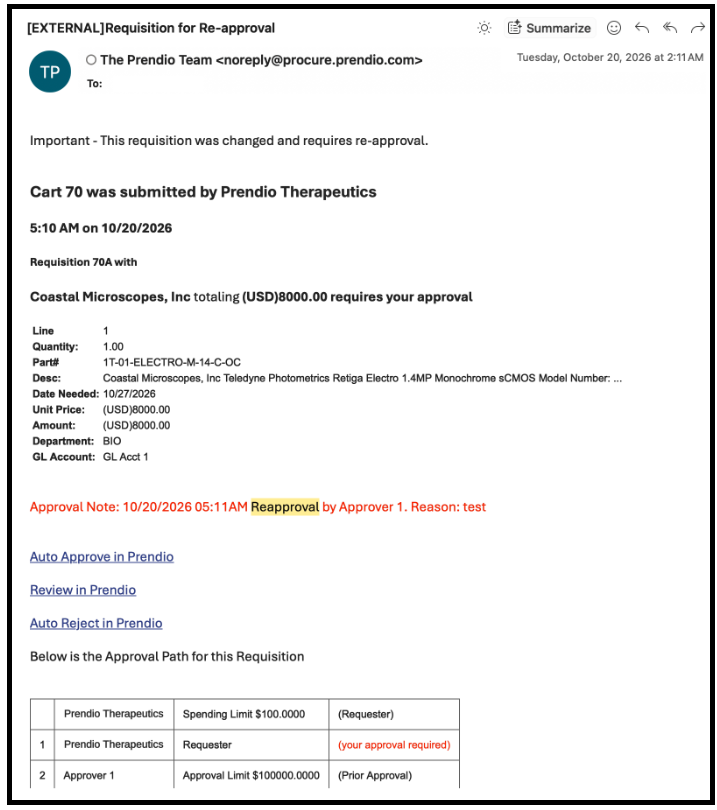
After selecting the option to Review, the requester will be directed to Prendio edit the requisition:
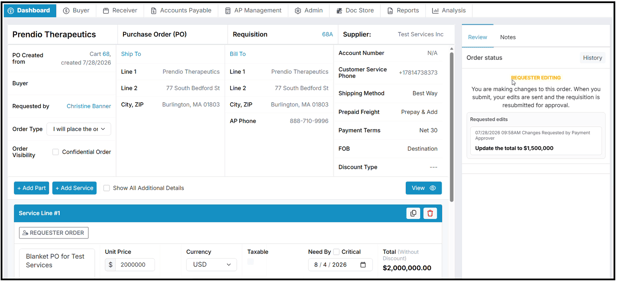
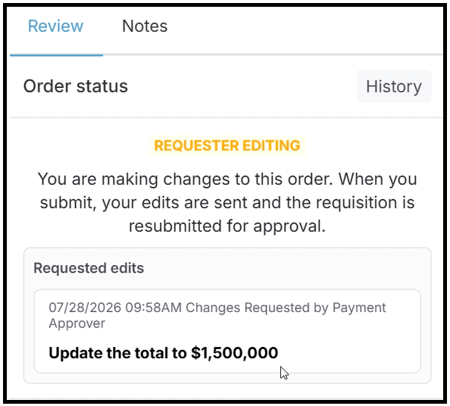
Notes from the Approver regarding required changes can be viewed on the right:
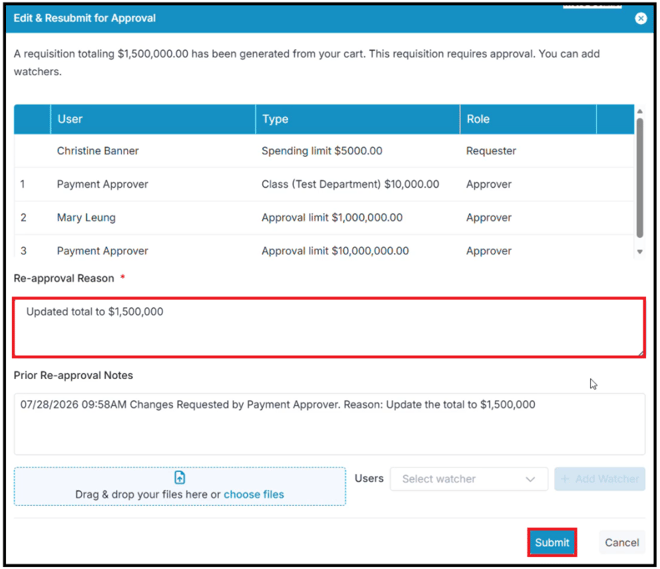
After the correct updates have been made, Submit Changes on the bottom right:

The approval window will appear. Add a Re-approval Reason and Submit when complete:
A success message will briefly appear on the top right of the screen:
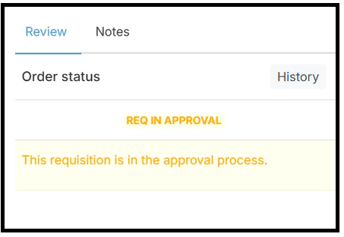
The status of the requisition updates to Req in Approval:
Video Guidance of Requester Edits to a Requisition in Approval
Edit and resubmit myself
An approver can opt to edit and resubmit any changes themselves. Once updated, the original requester and any prior approvers in the path must review and approve the new changes.
Approver Edits Requisition
Select Edit and resubmit myself: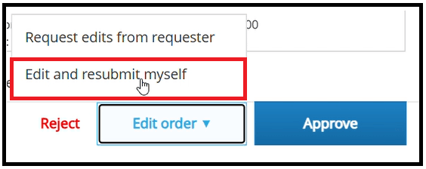
The Approver will be directed to edit the requisition:
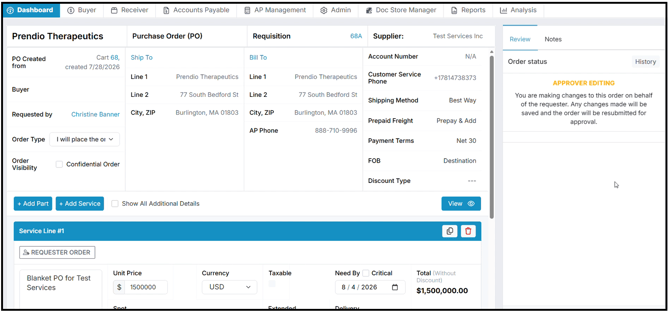
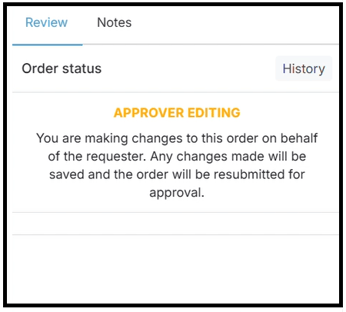
The for the requisition will be in Approver Editing:
After the correct updates have been made, Submit Changes on the bottom right:

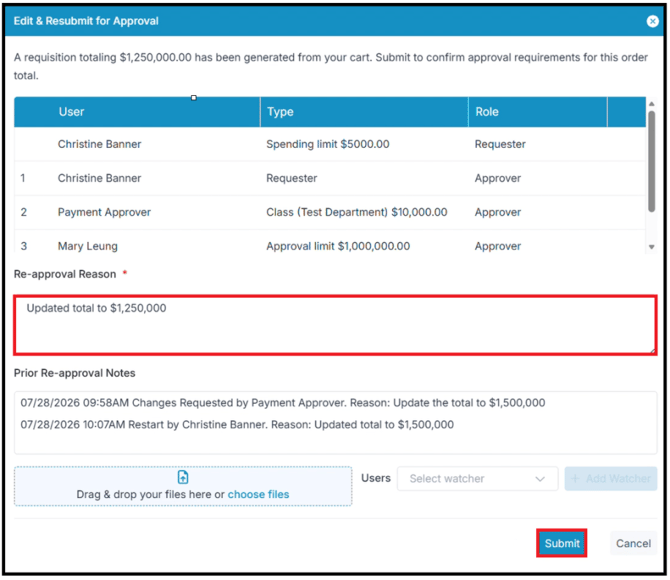
The approval window will appear. Add a Re-approval Reason and Submit when complete:
A success message will briefly appear on the top right of the screen:
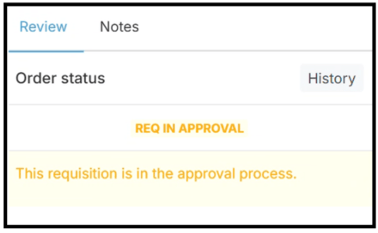
The status will update to Req in Approval:
Video Guidance on an Approver Making Edits to a Requisition in Approval
Requester Reviews Edits Made by an Approver
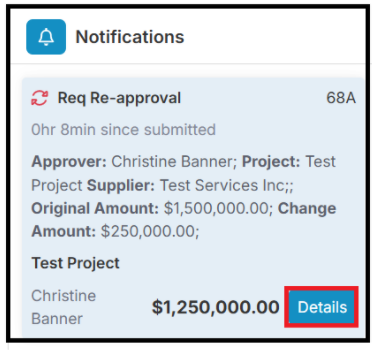
The original requester will receive a notification on their Dashboard:
Along with an email notification:
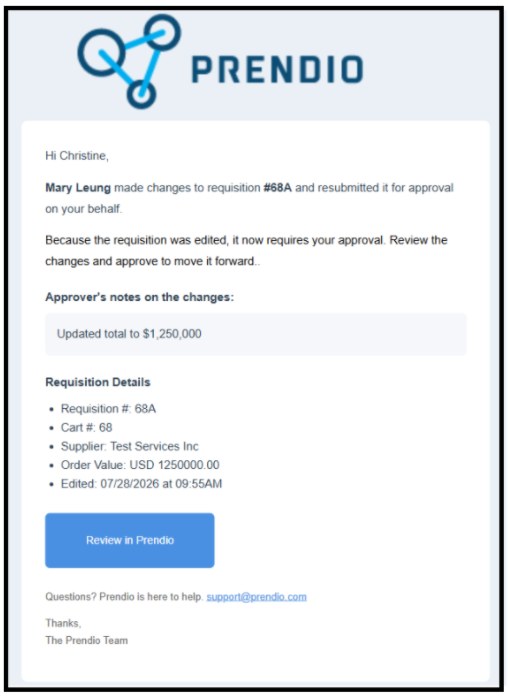
The original requester must review and approve any changes. They also have the option to Edit the requisition again and submit for approval or reject the order:
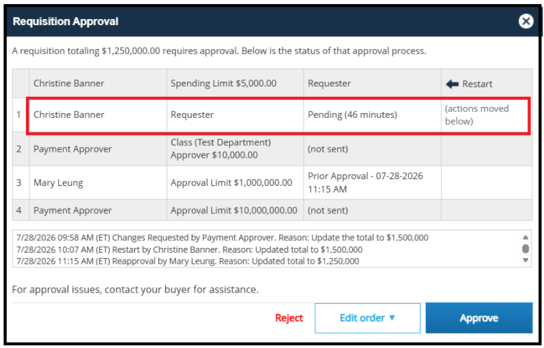
Video Guidance on Responding to Requisition Changes as a Requester
Other Notes
Certain fields in a requisition may not be available for a requester or approver to edit. These can include the Part#, Description, Unit Price, Currency, U/M.
Common reasons include if the original cart was created using a Punchout or if the cart contained items from the Prendio inventory. When fields are not open to changes, they will be greyed out:
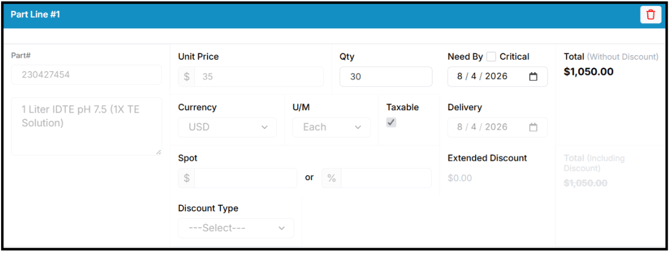
Additional funds - The ability to edit a requisition in approval does not apply when additional funds are requested. Approvers must review the request and approve or reject as appropriate.