
Updated on November 1, 2026
The Invoice Analytics dashboard shows what has been invoiced and where it is in AP. It has one row per voucher line: every invoice line entered in Prendio, whether its PO is open or closed.
Use it to see what's waiting on a match, what's been pushed to your ERP, what's been paid, and where the dollars are going.
Together with the Open PO Dashboard, which shows open POs and where they're stuck, and Cycle Time Analytics, which shows how long the process takes and where it slows down, these three dashboards track a purchase from request to payment.
Headline KPIs & Status at a Glance
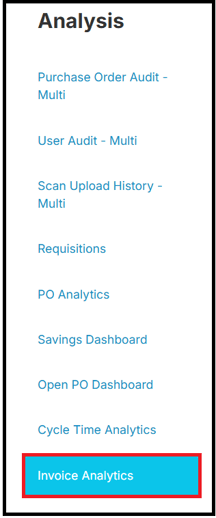
Locating Invoice Analytics
Navigate to the Analysis tab:

Followed by Invoice Analytics:
Filters & Search
The filters apply to everything on the dashboard.
- Dates: Invoice Date, Invoice Scanned Date, Voucher Closed Date, PO Created Date, PO Submission Date, Supplier Confirmed Date
- Who and where: Department, GL Account, Segments, Requestor, Supplier, Payment Terms
- What: Goods vs. Service, PO Type, PO Status (open / closed)
- Look-ups: PO Number, Invoice Number, Voucher Number
- Status: In Approval, In Buyer Queue, Voucher Status, Payment Status
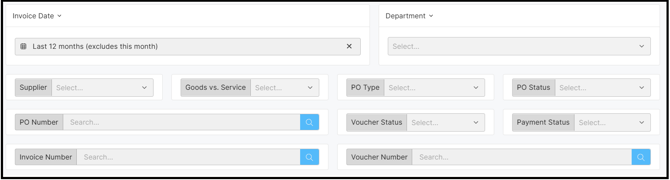
The information shown on the dashboard will be based on any filters or search criteria you apply.
Headline KPIs & Status at a Glance
The cards show Voucher Amount, Vouchers, Voucher Lines and Suppliers for whatever your filters leave on the page:

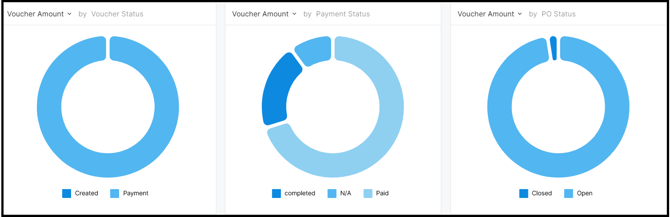
Three charts break the vouchers down by Voucher Status, Payment Status and PO Status (open vs. closed):
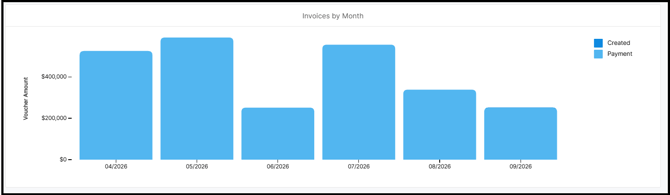
Spend Over Time
This chart shows voucher amount by month, stacked by voucher status. Months are based on Invoice Date:
Spend by Dimension
Three charts show voucher amount by Supplier, Department and GL Account:
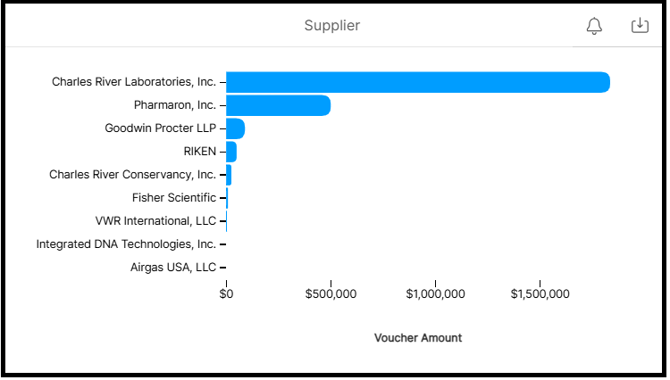
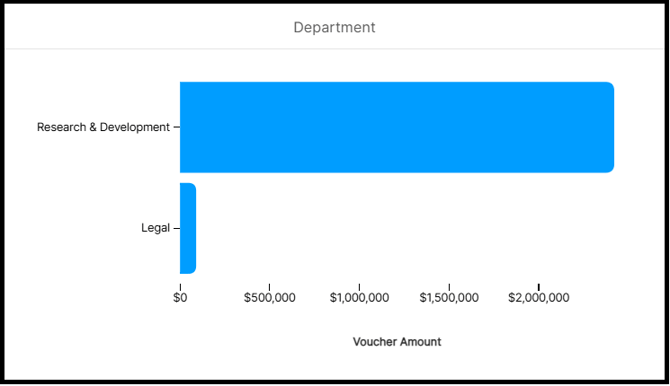
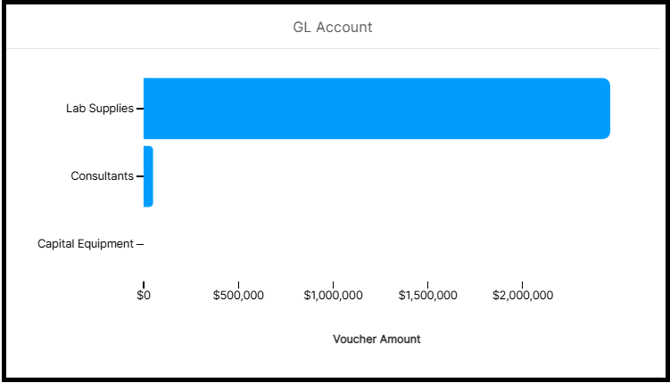
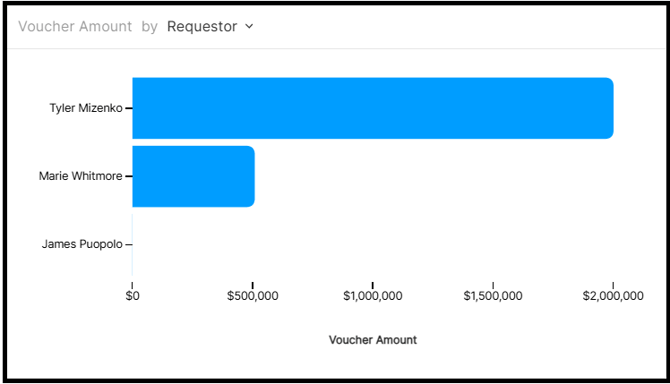
A fourth, adjustable chart lets you switch the dimension to Requestor, a Segment or Payment Terms. Click the ˅ next to the chart title to change it:
Voucher Line Details
This table lists every voucher line with:
- its PO, receipt, invoice and ERP Bill ID
- who requested, bought, received, vouchered and pushed it
- every status and date from PO creation to payment
- line, tax, freight and total amounts in both the invoice currency and USD
Click any line to open that PO's details:
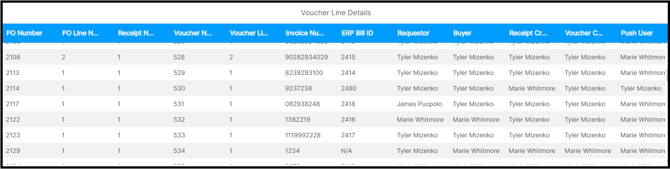
Clicking on a line will direct you to the PO details:
Good to know
Amounts come in two currencies. Columns ending in USD are converted; the others are in the invoice's own currency. Add up the USD columns when invoices span more than one currency.
Header amounts repeat on each line. Voucher Header Total and PO Total Amount describe the whole document, so they appear on every line of it. Don't add them up across lines.
Downloading a View
Different views of the Invoice Analytics Dashboard can be downloaded when hovering in the top right corner of the view: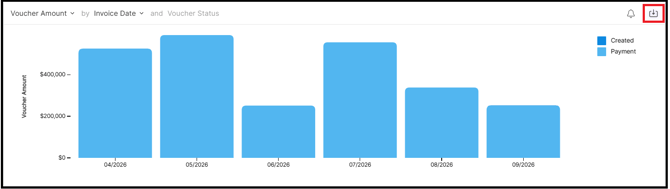
The following options are available CSV, XLSX, and PNG :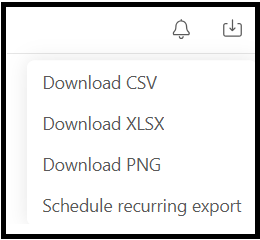
Tips For Getting Around
- Scroll right for more columns: the Voucher Line Details table has more columns than fit on screen.
- Exports line up: column names and order match across Invoice Analytics, the Open PO Dashboard, Cycle Time Analytics and PO Analytics.