
Updated on November 1, 2026
The Open PO Dashboard shows what's open, how old it is, and where it's stuck. An open PO has been created but isn't yet fully received, invoiced and paid.
Five sections follow the PO forward: PO Summary, PO Details, Receipt Details, Voucher Details and Pending Vouchers. Each one re-matches to whatever your filters have left on the page.
Together with Invoice Analytics, which shows what has been invoiced, where each invoice stands in the AP process and how much remains unpaid, and Cycle Time Analytics, which shows how long the process takes and where it slows down, these three dashboards track a purchase from request to payment.
Locating The Open PO Dashboard
Locating The Open PO Dashboard
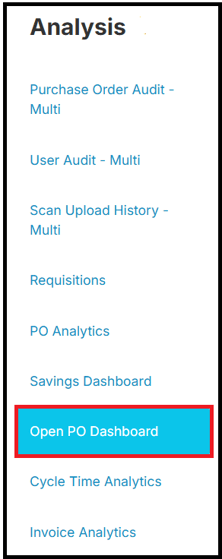
Navigate to the Analysis tab:

Followed by Open PO Dashboard:
Filters & Search
Filter by PO Created Date, PO Submission Date, Supplier, Goods vs. Service, Department, GL Account, PO Number, Requestor, In Requisition Approval and In Buyer Queue:
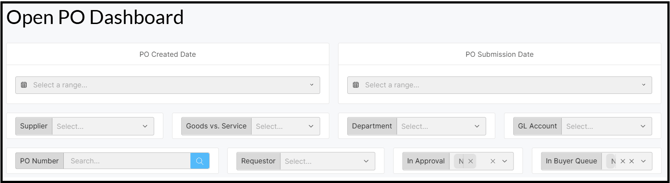
The filters apply to all five sections of the dashboard.
The approval and buyer filters start at "No." By default, In Requisition Approval and In Buyer Queue leave out orders still being approved or waiting for a buyer to place them. Change either filter to Yes to include them.
PO Summary
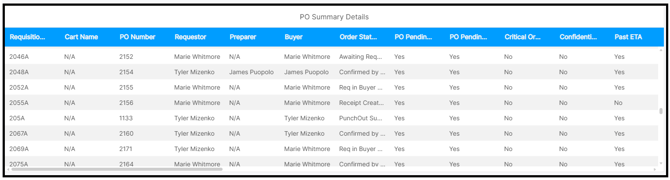
PO Summary lists every open PO with its age, ETA status and outstanding dollars. The cards show Open POs, Avg Open Days, POs Past ETA, Total PO Amount, Invoiced Amount and Remaining Amount:
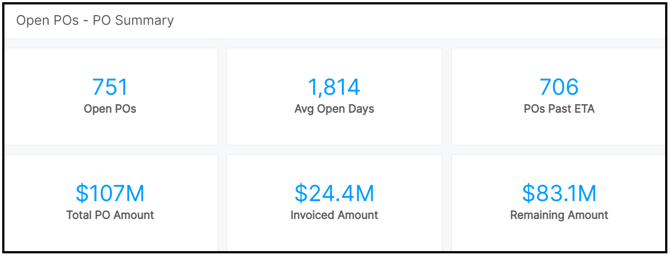
Narrow this section with the Order Status, Past ETA, Pending Invoice and Pending Receipt dropdowns. Your choices update both the cards and the PO Summary Details table below them:

PO Details & PO Line Details
PO Details shows line-level detail, including Supplier Confirmed Date, Ship To and Bill To Address, and Discount USD. The charts show the spend mix by supplier and by Goods vs. Service. Columns match PO Line Details in PO Analytics:
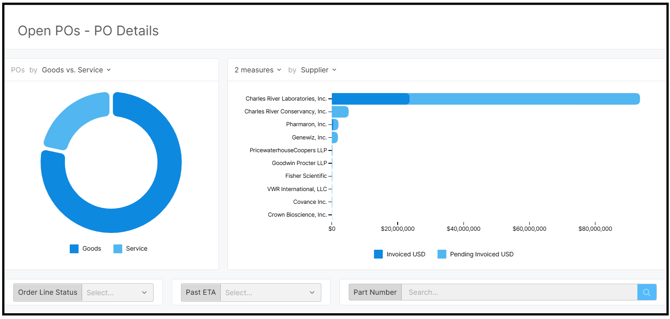
Narrow this section with the Order Line Status, Past ETA and Part Number dropdowns:

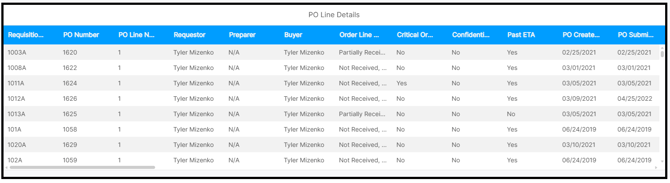
Receipt Details
Receipt Details shows what has been received, and whether each receipt has matched to a voucher. The cards show Open POs Matched, Receipts, Receipts Voucher Matched and Receipt Amount:
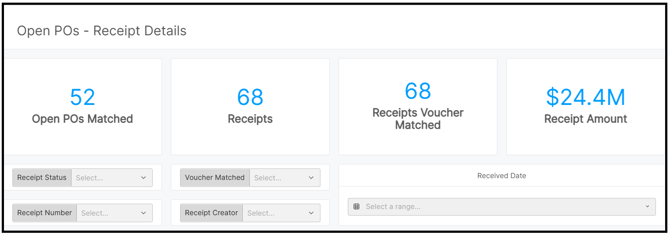
Narrow this section with the Receipt Status, Voucher Matched, Receipt Number and Receipt Creator dropdowns:
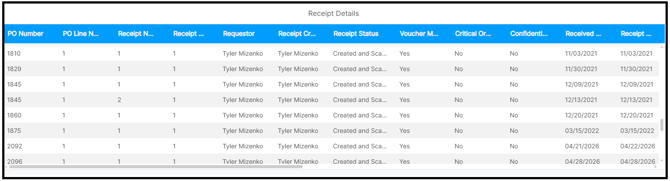
Voucher Details
Voucher Details follows each voucher line from invoice to ERP push to payment, with its Document Type, Buyer and Payment Terms. The cards show Open POs Matched, Vouchers, Avg Invoice to Push Days and Voucher Amount.
Avg Invoice to Push Days is the average time from the invoice date to the day the voucher was pushed to the ERP:
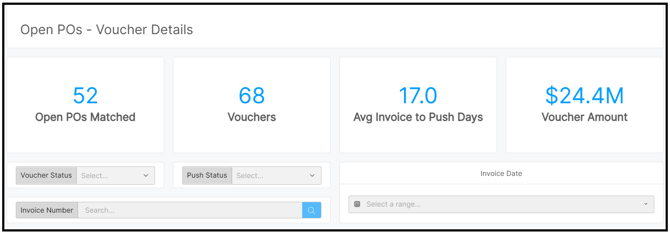
Narrow this section with the Voucher Status, Push Status, Invoice Number and Invoice Date dropdowns:
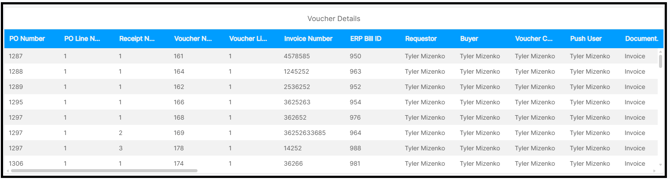
Pending Vouchers
Pending Vouchers shows invoices entered from the scan match, the reason each one is being held, and how long it has been waiting. The cards show Open POs Matched, Invoices, Avg Days Pending and Invoice Total Amount:
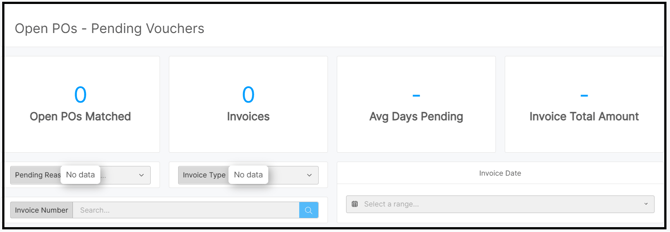
Narrow this section with the Pending Reason, Invoice Type, Invoice Number and Invoice Date dropdowns:
Downloading a View
Different views of the Open PO Dashboard can be downloaded when hovering in the top right corner of a view:
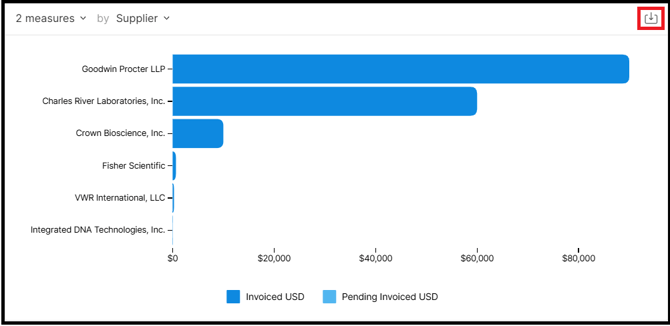
The following options are available CSV, XLSX, and PNG :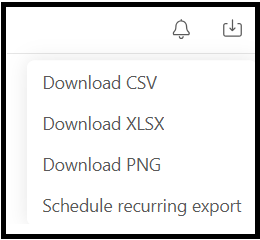
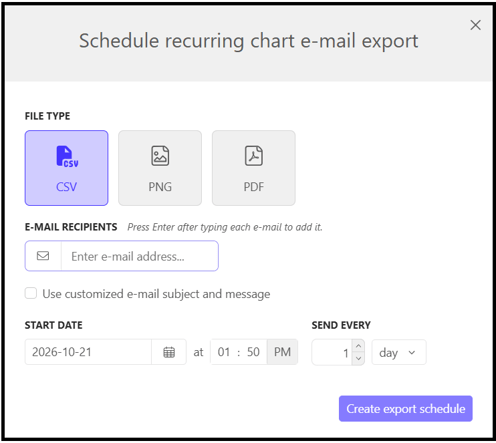
Users can select Schedule a recurring export to have a view emailed to multiple users. Adjust the criteria required before selecting Create export schedule:
Tips for Getting Around
- Filters work in two tiers: the filters at the top of the page apply to every section. Dropdowns directly above a section change only that section.
- Jump to the PO: click any row in a details table to open that PO in Prendio.
- Scroll right for more columns: tables include more columns than fit on screen.
- Exports line up: column names and order match across the Open PO Dashboard, Cycle Time Analytics, Invoice Analytics and PO Analytics.
Terms Worth Knowing
|
Term |
Meaning |
|---|---|
|
Open Age (Days) |
Days the PO or line has been open as of today. |
|
Past ETA |
The supplier's expected date has passed and the line isn't fully received. |
|
In Requisition Approval / In Buyer Queue |
The order is still being approved, or approved and waiting for a buyer to place it. |
|
Supplier Confirmed Date |
The date the supplier confirmed the order. |
|
Voucher Matched |
A receipt has been matched to a voucher line, so the three-way match is done. |
|
Document Type |
The type of AP document the voucher was created from. |
|
Pending Reason / Pending Age (Days) |
Why an invoice hasn't become a voucher yet, and how long it's been waiting. |
|
Voucher / Push / Payment Status |
Where the voucher stands in Prendio, whether it has been pushed to the ERP, and whether it has been paid. |
|
Requestor / Preparer / Buyer |
Who needed it / who built the cart / who placed the PO. |
|
Receipt Creator |
Who entered the receipt. |