
Updated on July 9, 2026
Payments can process successfully in Prendio, but fail to sync with QuickBooks Online or NetSuite. Below are common errors associated with each ERP system along with steps to resolve.
Where to Find ERP Push Errors in Prendio
QuickBooks Online (QBO) Errors
Authentication Failed / Token Expired
Currency or Exchange Rate Missing
Required Parameter Missing (TxnId)
Invalid Company Status / Subscription Ended
Transaction Matched to Downloaded Transaction (Void)
Invalid Sublist Operation — Bill Marked Paid in Full
When to Contact Prendio Support
What Is an ERP Push Error?
When a payment is submitted through Prendio, two things happen:
- The payment is sent to the payment provider (Edenred or Corpay).
- When a payment is delivered, the payment information is pushed to your connected accounting system — either QuickBooks Online (QBO) or NetSuite.
An ERP push error means the payment was processed successfully with the payment provider, but it failed to record in your accounting system.
This does not mean the vendor was not paid. It means your accounting records are out of sync and need to be corrected so the payment appears properly in QBO or NetSuite.
Where to Find ERP Push Errors in Prendio
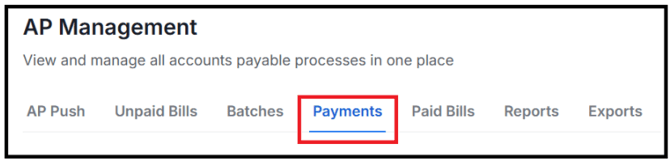
Locate AP Management followed by Payments:
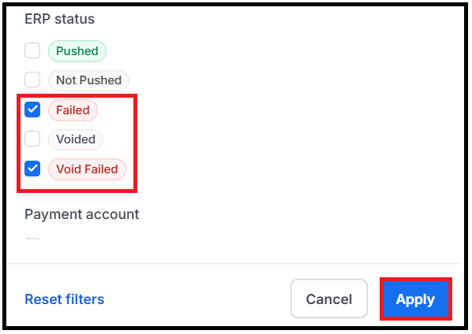
Select Filters and locate the ERP status filter. Check Failed or Void Failed. Apply once complete:

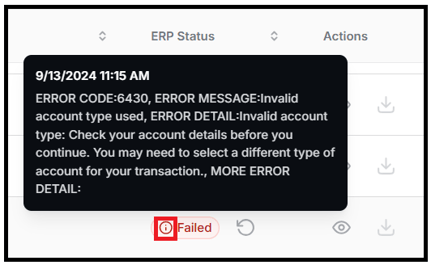
For a payment, hover over the info icon next to a status to see the specific error message. This detail is what you will need to identify which error applies and how to resolve it:
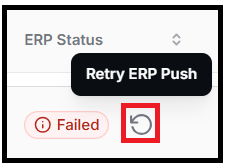
The Retry ERP Push button appears on any payment with a failed ERP status. After correcting the underlying issue in QBO or NetSuite, use this button to re-attempt the push — there is no need to resubmit the payment itself.
|
Important: Most ERP push errors can be resolved by correcting a setting in QBO or NetSuite and clicking Retry ERP Push. Contact Prendio Support using the form below if the error recurs after retrying, or when the resolution steps below direct you to: |
QuickBooks Online (QBO) Errors
The following errors occur when Prendio attempts to push a payment to a connected QBO company account.
Failed to Refresh Token
Authentication error | QBO
This occurs when a session or connection problem interrupted the link between Prendio and QuickBooks Online. This is usually intermittent.
Steps to resolve:
-
Locate AP Management followed by Payments:
-
Locate the correct payment and select Retry ERP Push:
-
If the error appears again on a second attempt, contact Prendio Support by completing the support ticket request form below:
Support Ticket Request Form
Overpaid
Error code: 6000 — OVERPAID | QBO
One or more invoices in the payment already have a payment or credit applied against them in QBO, causing the Prendio payment amount to exceed what QBO shows as outstanding. This typically happens when an invoice is manually marked as paid in QBO while payment for it is still pending in Prendio.
Steps to resolve:
- Confirm the payment made through Prendio is correct for the invoice.
- In QBO, locate the invoice and remove the manual payment or credit that was applied.
- In Prendio, locate AP Management followed by Payments:
- Select Retry ERP Push for the payment:
Authentication Failed / Token Expired
Error code: 3200 or 2410 | QBO
The OAuth token used to connect Prendio to QBO expired or failed to refresh. This is intermittent and not specific to payments — it can affect other QBO transactions as well.
Steps to resolve:
- In Prendio, locate AP Management followed by Payments:
- Select Retry ERP Push for the correct payment:
- If the error clears, no further action is needed. If you see this error repeatedly across multiple payments, contact Prendio Support using the Support Ticket Request Form below:
Support Ticket Request Form
Invalid Account Type
Error code: 6430 | QBO
The ERP GL Account Mapping set for the Payment Account in Prendio is using an account type that QBO does not accept for payments (for example, an Accounts Payable liability account). QBO requires an asset account type such as a bank account.
Steps to resolve:
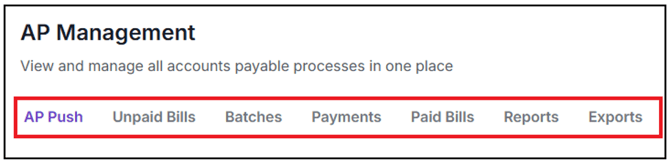
- In Prendio, navigate to AP Management followed by any of tabs below:
- Select Payment Settings:
- Open the Domestic Payments or International Payments tab depending on which payment failed:

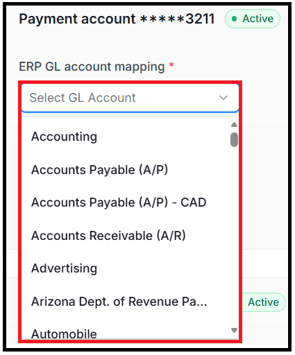
- Locate the Payment Account related to the failed payment. Edit the ERP GL Account Mapping field and select the correct QBO bank or asset account:
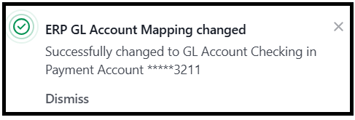
- Changes will save automatically. A success message will briefly appear at the top right of the screen:
- Return to AP Management > Payments and select Retry ERP Push:
TxnID Cannot Be Linked
Error code: 620 | QBO
The supplier ID linked to the payment in Prendio does not match the supplier ID that was used when the corresponding bill was pushed to QBO. This can happen if a supplier's QBO mapping changed after the bill was already sent.
Steps to resolve:
- In QBO, locate the bill and update the vendor to match the supplier currently mapped in Prendio.
- In Prendio, go to AP Management > Payments followed by Retry ERP Push for the correct payment:
Currency or Exchange Rate Missing
Error code: 2410 | QBO
The currency used on the invoice no longer has a valid exchange rate in QBO, or the currency configuration changed since the bill was originally pushed.
Steps to resolve:
- In QBO, verify that the currency is still enabled and has a current exchange rate configured.
- In Prendio, go to AP Management > Payments followed by Retry ERP Push for the correct payment:
Required Parameter Missing (TxnId)
Error code: 2020 | QBO
When the bill was pushed to QBO, the transaction ID was not properly saved in Prendio's database. Prendio cannot push the payment without it.
Steps to resolve:
- This requires a data correction that cannot be completed from the Prendio interface. Please contact Prendio Technical Support using the Support Ticket Request form below:
Support Ticket Request Form
Account Period Closed
Error code: 6210 | QBO
The accounting period in QBO has been closed, preventing any changes to transactions from that period through the API.
Steps to resolve:
- In QBO, adjust the account period to allow the payment to be accepted (Account and Settings > Advanced > Accounting).
- In Prendio, go to AP Management > Payments followed by Retry ERP Push for the correct payment:
Invalid Company Status / Subscription Ended
Error code: 6190 | QBO
The QBO account has been suspended, cancelled, or the subscription has lapsed.
Steps to resolve:
- Contact Intuit to restore access to your QBO company account.
- Once the account is restored, return to Prendio and navigate to AP Management > Payments followed by Retry ERP Push for the correct payment:
Transaction Matched to Downloaded Transaction (Void)
Error code: 6000 — Void | QBO
Prendio attempted to void a payment in QBO, but the transaction was already matched to a downloaded bank transaction. This can also occur if the payment was manually created or removed in QBO outside of the Prendio workflow.
Steps to resolve:
- In QBO, unmatch the transaction from the downloaded bank transaction.
- In Prendio, go to AP Management > Payments followed by Retry ERP Push for the correct payment:
- If the issue persists, contact Prendio Support using the Support Ticket Request Form below:
Support Ticket Request Form
NetSuite Errors
The following error occurs when Prendio attempts to push a payment to a connected NetSuite account.
Invalid Sublist Operation — Bill Marked Paid in Full
SSS_INVALID_SUBLIST_OPERATION | NetSuite
The vendor bill in NetSuite was manually marked as “Paid in Full” before Prendio's payment information could be pushed. NetSuite no longer accepts changes to a fully-paid bill via the API.
Steps to resolve:
- Confirm the payment made through Prendio is correct for the invoice.
- In NetSuite, locate the vendor bill and revert the Paid in Full status.
- In Prendio, go to AP Management > Payments followed by Retry ERP Push for the correct payment:
Quick Reference Table
Below is a table of the ERP status error messages detailed in previous sections of this page.
|
Error |
ERP |
Root Cause Summary |
Self-Service? |
|
Failed to refresh token |
QBO |
Intermittent connection issue |
Retry; escalate if repeated |
|
OVERPAID (6000) |
QBO |
Invoice manually paid in QBO before Prendio push |
Yes — remove credit in QBO, then retry |
|
Auth failed (3200 / 2410) |
QBO |
OAuth token expired |
Retry; escalate if widespread |
|
Invalid account type (6430) |
QBO |
GL Account Mapping uses wrong account type |
Yes — update ERP GL Account Mapping |
|
TxnID cannot be linked (620) |
QBO |
Supplier ID mismatch between bill and payment |
Yes — fix vendor on bill in QBO |
|
Currency / exchange rate (2410) |
QBO |
Currency or exchange rate missing in QBO |
Yes — verify currency in QBO |
|
Missing TxnId (2020) |
QBO |
Transaction ID not saved in Prendio database |
No — contact Prendio Support |
|
Period closed (6210) |
QBO |
Accounting period locked in QBO |
Yes — open period in QBO |
|
Invalid company status (6190) |
QBO |
QBO subscription lapsed or cancelled |
Yes — restore QBO account via Intuit |
|
Void / matched transaction (6000) |
QBO |
Void blocked by matched bank download |
Partial — unmatch in QBO; escalate if needed |
|
SSS_INVALID_SUBLIST_OPERATION |
NetSuite |
Bill marked Paid in Full before payment pushed |
Yes — revert Paid in Full in NetSuite |
When to Contact Prendio Support
Certain ERP status errors require the Prendio Technical Support team to review. Prendio Technical Support may also needed to be contacted if the same error message occurs multiple times. Below is a review of when support needs to review the errors:
- Error code 2020 / Missing TxnId — requires a data correction by Prendio.
- Any error that recurs after two Retry ERP Push attempts.
- Multiple payments failing simultaneously with authentication errors — the QBO connection may need to be re-authorized.
- You are unsure which resolution step applies based on the error detail shown in Prendio.
If any of the above situations occur, please use the Support Ticket Request Form below for a member of the support team to reach out: