
Updated on August 26, 2026
SCIM (System for Cross-domain Identity Management) is an industry standard for automating user lifecycle management. When enabled, Prendio automatically creates, updates, and deactivates user accounts based on changes in your identity provider (Okta).
A new user Prendio account is created automatically with the correct department, approval limits, and spend limits. When a user leaves, their access is revoked instantly and approval paths auto-adjust, eliminating manual user administration in Prendio.
In this document, Okta will be used as the SSO provider for configuration examples. We are working towards integration with Microsoft Entra ID, and OneLogin for future versions of this feature.
Checklist for SCIM Integration
Connect Your Identity Provider
Updating a User's Approval Path
Checklist for SCIM Integration
Make sure the following are in place before starting setup:
- SCIM provisioning enabled on your account - contact your Account Manager to get started.
- Departments in Prendio should match department names in your IdP exactly
- Admin access to your IdP (e.g., Okta)
- The Prendio SCIM app configured in your IdP with an active token
- Attribute mapping pre-configured to include: name, email, phone, department, approval limit, spend limit, and manager
Connect Your Identity Provider
IT admin or IdP administrator needs to guide in completing the connection steps
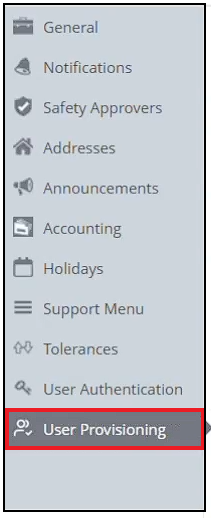
In Prendio, navigate to Admin > User Provisioning:

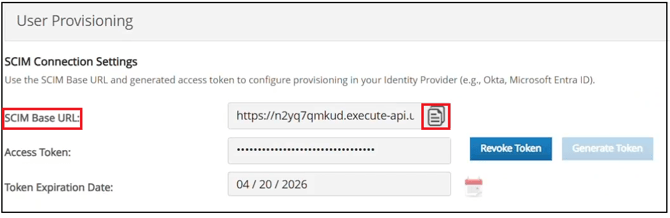
Copy the SCIM Base URL displayed on the page:
Generate an API token (if one has not already been created). In your IdP (e.g., Okta), open the Prendio SCIM app and paste in the Base URL and token. Below Okta SCIM is used as an example:
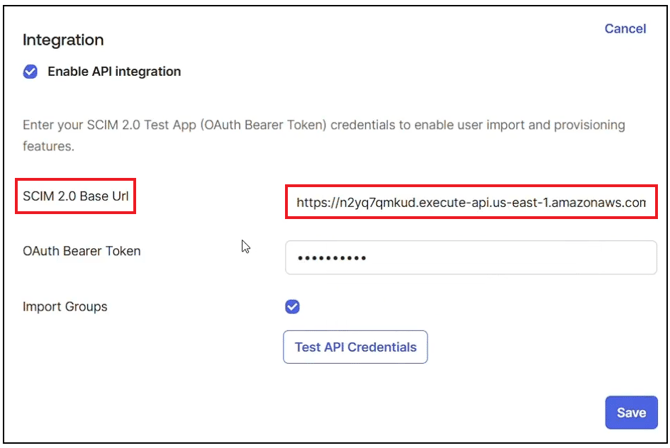
Save and confirm the connection is active. This is a one-time step. Once connected, all user changes flow automatically.
Provision a New User
When a new employee needs access to Prendio.
In your IdP, add a new user:
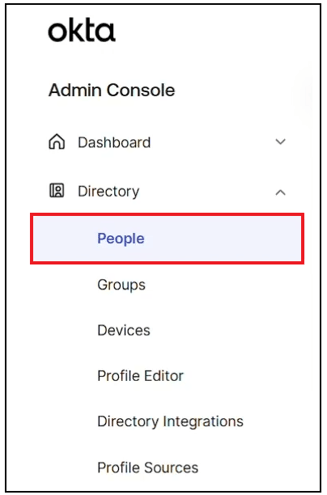
Add person and Save when complete:
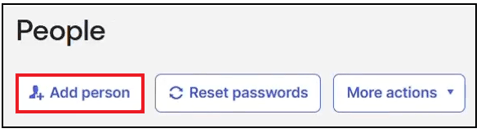
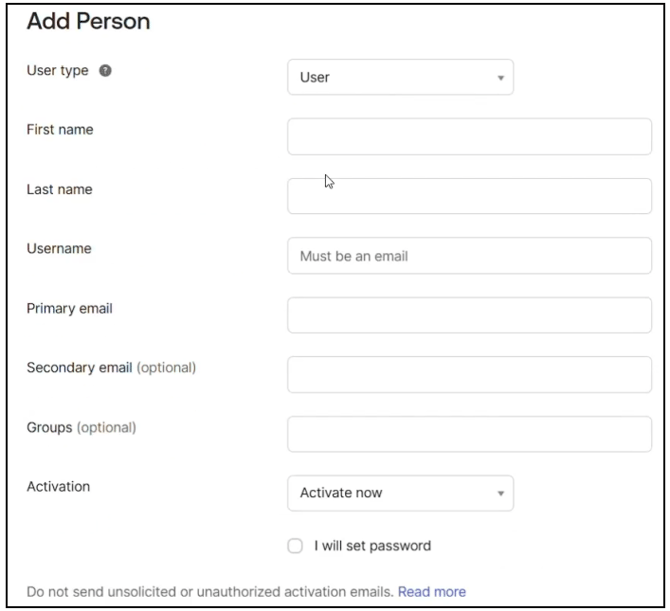
After the new user account is created, select their account by clicking on their name:

Select Assign Applications to assign the user to the Prendio SCIM app:
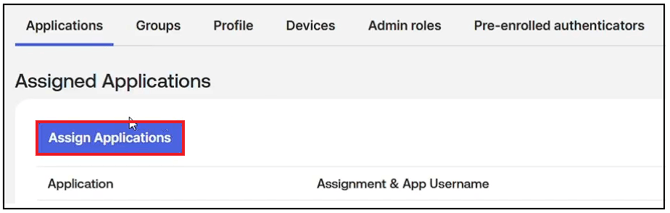
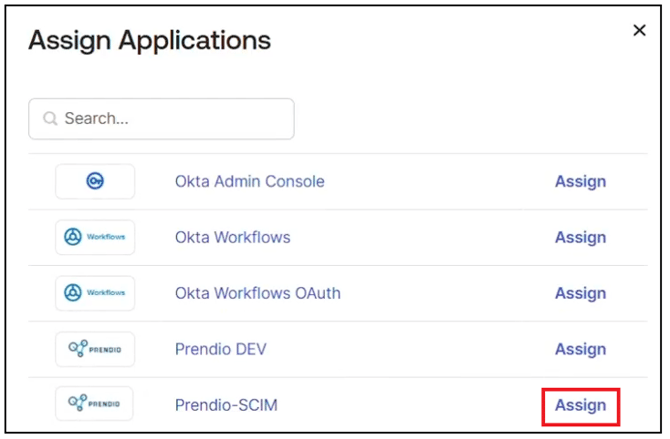
Confirm the following attributes are populated and Save when complete:
-
- Name and email address (user name)
- Approval limit
- Spend limit
- Department(s)
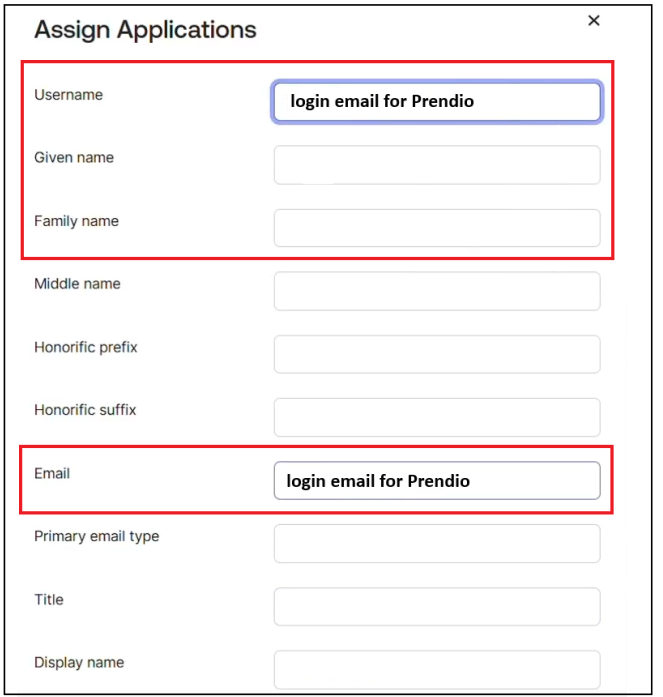
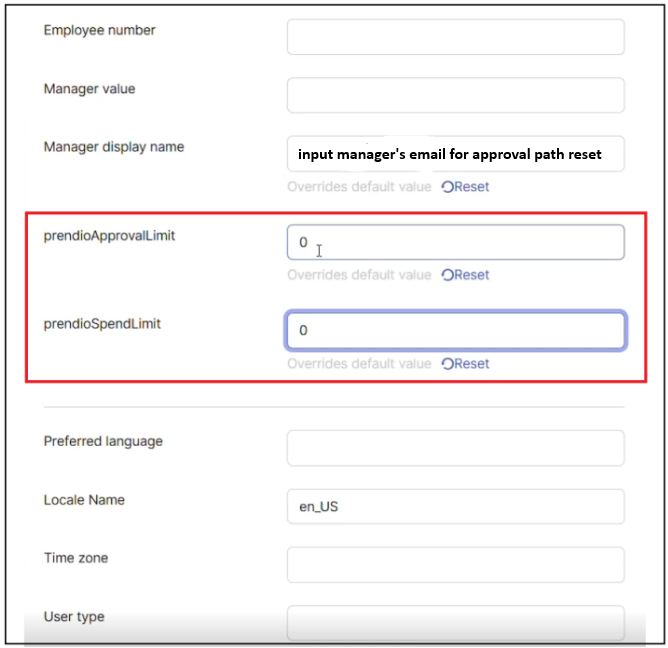
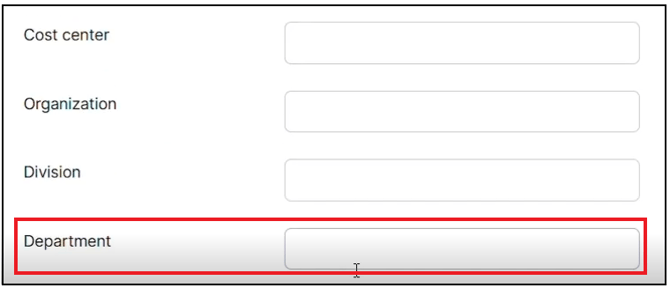
In Prendio, navigate to the User List to confirm the new account was created automatically with the correct department, limits, and role.
All users will be assigned the Requester role by default at provisioning. The user will have a fully configured Prendio account and can begin purchasing on day one — no manual setup required.
Update a User's Attributes
When an employee transfers departments or has a role change:
In your IdP, locate and select the user's profile:
Select Edit followed by Reapply Mapping to enable fields to be open for changes:
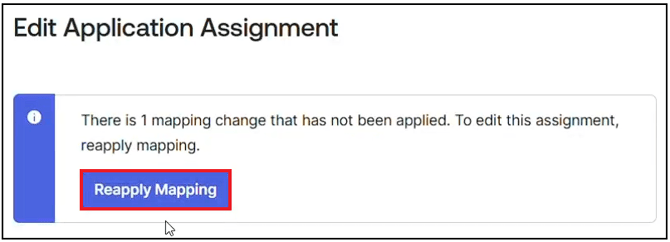
Update the relevant attribute (e.g., change department from "Research" to "Operations"). Save updates when complete.
- Changes typically sync within minutes. If the update hasn't appeared in Prendio after 10 minutes, trigger a manual sync from your IdP:
- Okta: Open the Prendio app → Provisioning → Push Now
- Okta: Open the Prendio app → Provisioning → Push Now
In Prendio, open the user's profile to confirm the change has been applied.
Updating a User's Approval Path
Please note that in order for any changes made to a user's approval path in Okta to sync in Prendio, Approval Path Automation must be selected via Admin > General > User Provisioning:
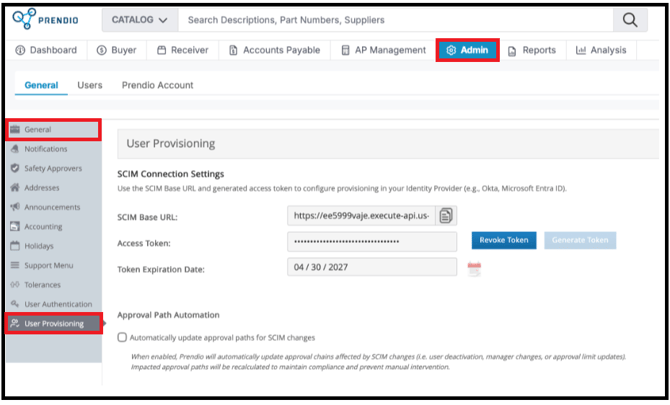

Save this selection when complete:

Changes made to a user's approval path in Okta will now sync to Prendio.
Offboarding a Departing Employee
Note: Before offbaording an employee, any open POs, requisitions, and Non-PO invoices where the departing user is the requester must be manually re-assigned in Prenio. Prendio will refuse the deactivation while they own active orders, and Okta will report a provisioning error. PO, requisition, and Non-PO invoices cannot be re-assigned in Okta.
For additional details, please visit: Reassign Purchase Orders and Requisitions to Different Requesters
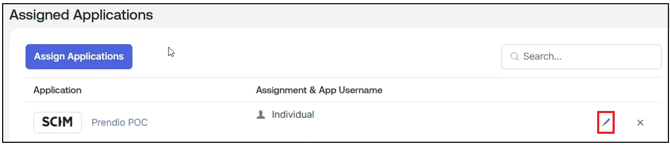
In Okta, locate and select the correct user profile:
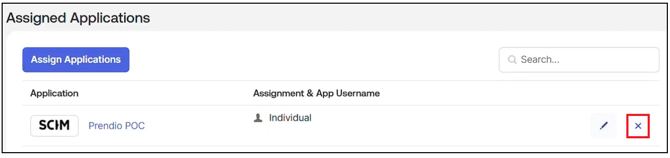
In Assigned Applications, remove (X) to remove the user from the Prendio SKIM app:
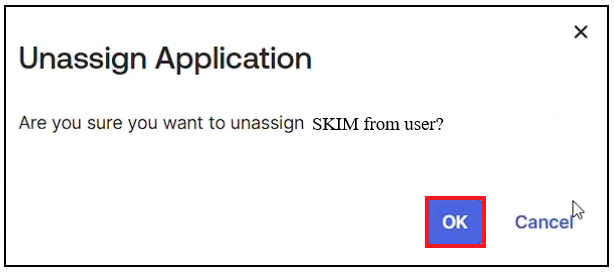
Confirm by selecting OK:
- In Prendio, confirm the user's account is now deactivated.
- Review any approval paths the user was part of and update these paths manually in Okta in order to push these updates to Prendio.
Approval chains are not recalculated on deactivation and Approval paths are NOT automatically repaired on offboarding.
Result: The user's purchasing access is revoked immediately. Any approval paths they were part of are automatically repaired so no orders are delayed or stuck.
What's Automated vs. Manual
| Action | Without SCIM | With SCIM |
|---|---|---|
| Create new user account | Manual | ✅ Automatic |
| Set department & limits | Manual | ✅ Automatic |
| Update department on transfer | Manual | ✅ Automatic |
| Revoke access on termination | Manual | ✅ Automatic |
Troubleshooting
What happens if a user was provisioned but their department is wrong or missing.
Department names sent from your IdP must exactly match department names configured in Prendio (case-sensitive). Check the department value in your IdP and compare it to the department list in Prendio. Correct the value in the IdP and the next sync will update it.
A user was provisioned but their approval limit wasn’t set.
Approval and spend limits require a custom SCIM schema extension configured in your IdP. If the extension is not set up, these fields will not be populated. Refer to the Quickstart Setup Guide for custom schema configuration.
What happens if I lost my API token?
Navigate to Admin > User Provisioning in Prendio:
Select Regenerate Token. This will create a new token and invalidate the old one. You will need to update the token in your IdP’s SCIM configuration.
I need to disconnect SCIM provisioning.
Remove user assignments from the Prendio application in your IdP to stop future syncs. (See the section above for Offboarding a Departing Employee)
Next, delete the API token in Prendio under Admin > User Provisioning:
Existing users are not affected — disconnecting SCIM does not delete or deactivate any previously provisioned users.
How do I get support for SCIM issues?
Submit a support ticket by completing a Support Ticket Request Form below:
For integration-specific issues, our team will bring in the appropriate specialists to help troubleshoot. Your Account Manager is also available for setup questions and guidance.
To help us resolve issues quickly, include:
• Which identity provider you are using (Okta)
• The specific user(s) affected
• What you expected to happen vs. what actually happened
• Any error messages from your IdP’s provisioning logs
• When the issue first occurred