
Table of Contents
- Overview
- Primary company for multi-company users
- Providing multi-company access for an SSO user
- Changing authentication to SSO for a multi-company user
Overview
A business that has multiple locations or subsidiaries each setup as a separate Prendio company can have users access them with one SSO email login. This is not intended for use with users that have access to multiple companies that are not related, such as consultants or contactors.
Outside the considerations below, there overall workflow and considerations for SSO authentication and multi-company user access are the same as noted in these help docs:
- Managing Users (Multi-Company Users section)
- Adding a User to Prendio (Authentication Tab section)
- User Authentication Configuration
Notes:
- If planning to setup multi-company SSO user access to your company, the same SSO configuration information must be saved under [Admin > General > Authentication] for each company. That way there are no problems with users having differing Primary companies (see below.) This also allows you to continue to have SSO users with single-company access as needed.
- As with non-SSO multi-company users, the data that ties multi-company accounts to one user is the email address. The account for each company can different properties such as roles, approval conditions, or order visibility.
Primary company for multi-company users
When a user has a multi-company account, they have a "Primary" company. This is the first company under which that user's email address and account is created. Subsequent companies to which the user is granted access are secondary companies.
For example:
- A business has Company 1 and Company 2 in Prendio
- An SSO user has access to Company 2
- It is decided that the user also requires access to Company 1
- An account for the user is created for Company 1, giving the user multi-company access
- The user's primary company is Company 2, because their first account originated there
When a change needs to be made to the Authentication section of the User Account Setup window, that change can only be made by an admin in the Primary company. The admin can see if they are editing the user under the Primary company when viewing the Authentication section:
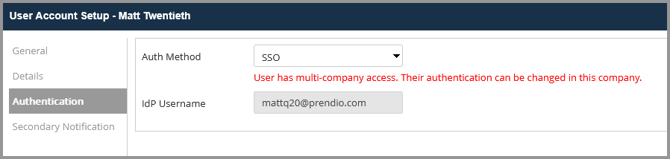
If they are not under the Primary company, the admin will see this indication with a clarification of which company is Primary for the user:
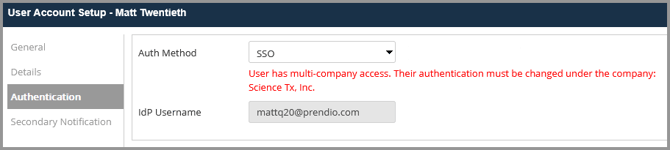
It is not possible to directly change the Primary company for a multi-company user. If an user has access to 3+ companies and their account is removed from the Primary company, their Primary company designation shifts to one of the remaining companies to which they have access.
Providing multi-company access for an SSO user
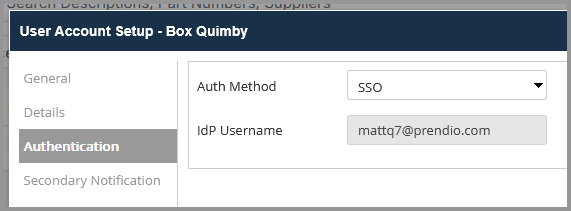
The process is mostly the same as when creating multi-company user access in a non-SSO situation. With an SSO situation, it is recommended to have the user's first account already setup with SSO Authentication:
As an admin one of your other Prendio companies, you can create a new user. When you input the same email address as the user in the first company, you are prompted to add them as a user with access to multiple accounts:
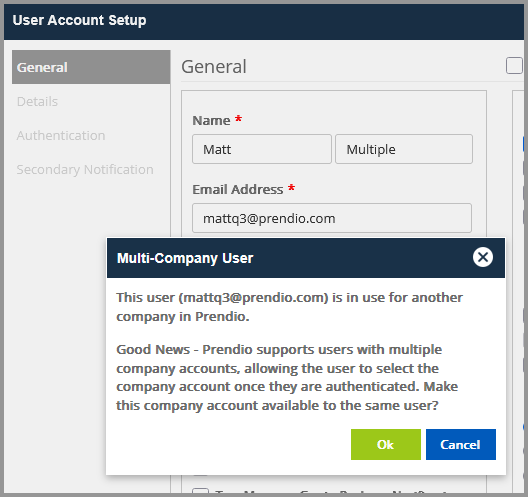
Click OK to accept this and save the user. This will create the user with SSO authentication in the "Draft" status for this company. However, the SSO authenticated access for the user in the first company will remain active.
When the user is sent an activation email for the new account, they need only click the activation link if they are already logged into the SSO provider. If not, they will need to enter their email at the Prendio login page and they will be directed to the SSO provider login.
Once all accounts are activated, the user can login with their one SSO account. After doing so, they can click the arrow next to the company name near the profile image to switch between companies:

Changing authentication to SSO for a multi-company user
If you have an existing multi-company user and are changing them to SSO authentication, this can be done by making the change to multi-company user in their Primary company.
As noted in the Primary company for multi-company SSO users section, the admin can go to the Authentication tab of the User Account Setup window to verify they are making the change from the right company:

From the Primary company, the admin can change the Auth Method from "Prendio" to "SSO". With SSO selected, the admin must provide an IdP Username that is typically the same as the user's company email address.
Once this change is saved, the user can login with their one SSO account going forward. As with before, they are able to change companies by clicking the arrow next to the company name near their profile picture: